
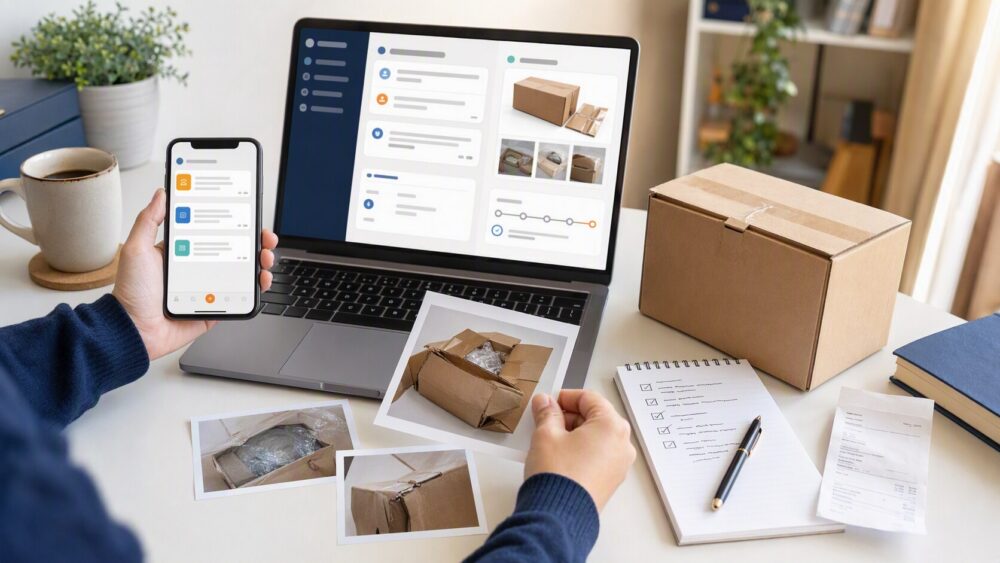
Quick answer: To open a dispute for a DHgate order, start from the affected order in My Orders, choose the refund, return, or dispute option currently shown for that order, select the reason that matches the issue, and upload clear evidence. Keep seller communication inside DHgate. If the issue is not resolved through the order thread, follow the mediation or support option shown in the same case flow.
What first-time buyers are asking before they open a DHgate dispute
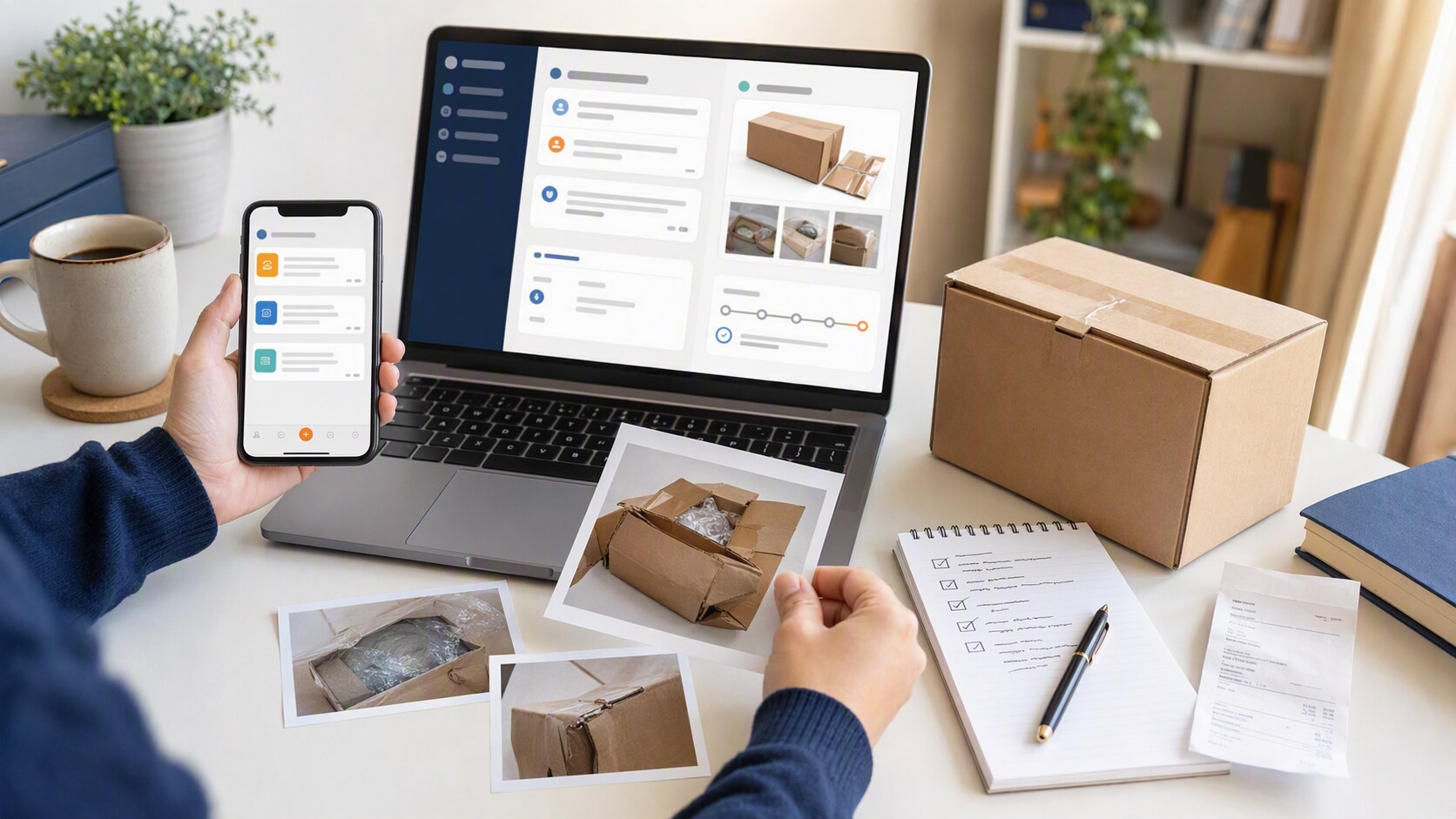
Most buyers are trying to answer the same practical questions: Where do I click? What counts as a valid reason? What should I upload? And what happens if the seller does not resolve the issue?
On DHgate, a dispute is not a separate side process. It is part of the marketplace’s order tools, used when an order has not arrived, arrives damaged, or does not match what was described. The point is to keep the case tied to the order itself so the platform can review the record, the messages, and the evidence together.
A useful way to think about it is this:
A DHgate dispute is an order-level review, not a general complaint. The stronger the order record and evidence trail, the easier it is to present the issue clearly.
That is why buyers usually start by checking the order status, the shipping timeline, the product listing, and the message history before they submit anything.
How DHgate works as a marketplace
DHgate is a marketplace, which means buyers place orders through the platform and use the platform’s own order tools when something needs review. DHgate’s help materials describe an official dispute path that starts from the order page and uses the order record as the basis for review.
The documented mechanics are straightforward: log in, find the order in My Orders, open the order details, and use the dispute or return-and-refund entry point shown for that order. DHgate’s help content also shows that the dispute process is tied to the order itself, so the buyer should work from the specific order page rather than trying to resolve the issue only through informal messages.
Two practical boundaries matter here:
- Each order is assessed from its own record.
- Timing and documentation help a buyer use the process.
That is the right frame for understanding how to dispute an order on DHgate. The platform is built around order records, seller responses, and documented case review, not around off-platform promises.
How buyer protection and disputes work on DHgate
DHgate’s buyer-protection flow is built around the order page, the dispute form, evidence upload, seller response, and, when needed, mediation. The process is designed to keep the issue visible inside the platform so the buyer, seller, and DHgate can review the same case file.
Here is the practical sequence:
- Open the order in your DHgate account.
- Choose the dispute or return-and-refund option shown for that order.
- Select the reason that matches the problem.
- Upload evidence directly in the case record.
- Submit the dispute and wait for the seller’s response.
- If the seller does not resolve it, request DHgate mediation through the case tools.
The evidence step matters because DHgate’s own guidance emphasizes supporting the claim with clear proof. For an order that has not arrived, that may include tracking screenshots and carrier information. For an order that arrived damaged or not as described, that may include photos, video, packaging images, and screenshots of the listing that show what was promised.
A practical evidence checklist for DHgate disputes:
- Order number and order page screenshot
- Product listing screenshot
- Tracking history or delivery status screenshot
- Photos of the item and packaging
- Video if the issue is easier to show in motion
- Message history with the seller
- A short written explanation of what is wrong and what resolution you want
If the seller responds, keep the conversation inside DHgate’s message and dispute tools so the case record stays complete. If the seller does not resolve the issue, mediation is the next documented step.
How to evaluate a DHgate seller and listing before you order
The easiest dispute is the one you do not need to open. Before placing an order on DHgate, review the listing and seller page with the dispute process in mind. You are not trying to predict every outcome; you are trying to make sure the listing, the seller communication, and the order record are clear enough to support a case if one is needed.
Use this checklist before you buy:
- Read the product title and description carefully.
- Check the photos and compare them with the item details.
- Look for size, color, model, quantity, and material information.
- Review recent feedback and photo reviews.
- Confirm shipping method, estimated delivery window, and order terms.
- Message the seller with one or two specific questions before ordering if anything is unclear.
- Save screenshots of the listing details that matter most.
For U.S. buyers and small-business readers, the most suitable habit is to treat the listing as part of your evidence file. If the item later arrives damaged or not as described, the original listing screenshots help show what you ordered and what was promised.
A simple rule works well here: if a detail would matter in a dispute, capture it before checkout.
A practical first-order workflow on DHgate
If you want to use DHgate’s dispute tools correctly on your first order, follow a disciplined workflow from the start. The goal is to keep your order record clean, your evidence organized, and your response time short if a problem appears.
- Review the listing before checkout. Save screenshots of the title, photos, description, and key specs.
- Message the seller if anything is unclear. Keep the question short and specific, and save the reply.
- Place the order and keep the order number handy. The order page is where the dispute starts.
- Track the order inside DHgate. Watch the shipping status and delivery updates.
- If there is a problem, open the dispute from the order page. Choose the reason that matches the issue and state the remedy you want.
- Upload evidence in the case record. Use photos, video, tracking, and message history.
- If the seller does not resolve it, request DHgate mediation. Stay inside the platform tools so the case history remains complete.
For a first order, the safest operational habit is simple: keep everything tied to the order page, keep screenshots from the beginning, and respond quickly if DHgate asks for more information.
If your order has not arrived, arrives damaged, or does not match the listing, the dispute process is there to give the platform a documented record to review. That is the practical answer to how to dispute an order on DHgate: start from the order, document the issue, use the official case tools, and follow the seller response or mediation path inside the platform.
Dispute evidence checklist
- Correct order: Confirm the order number, item, selected variation, and issue you are reporting.
- Listing record: Save screenshots of the listing, selected variation, description, and terms you relied on.
- Delivery record: Keep tracking updates, package photos, and delivery-status information where relevant.
- Item evidence: Upload clear photos or video showing damage, a wrong item, missing parts, or a difference from the listing.
- Messages: Keep seller communication inside DHgate so it remains attached to the order.
- Clear explanation: State the issue and requested resolution briefly, factually, and consistently with your evidence.
FAQ
How do I start a dispute on DHgate?
Open the affected order in My Orders and use the refund, return, or dispute option shown for that order.
What if I do not see a dispute or refund button?
Check the current order status and the actions available in the order details. Available options can change by order stage, so follow the support path shown for that order.
What evidence should I upload?
Use evidence that directly matches the issue: tracking for non-receipt; photos or video for damage; and listing screenshots plus item photos for wrong or not-as-described orders.
Should I message the seller first?
Follow the workflow shown in your order. If seller communication is needed, keep it inside DHgate so it remains part of the order record.
Can every dispute or refund request be approved?
No. The outcome depends on the order, selected reason, evidence, seller response, timing, and the applicable platform review process.
Next step
Before opening a case, gather the order details, listing screenshots, tracking, package photos, and seller messages that match the issue. Start from the affected order and follow the action currently shown in its details page.
Sources and further reading
- DHgate Blog — Dispute at DHgate: Solutions to Common Questions
- DHgate Blog — How to Check the Status of a Dispute on DHgate
- DHgate Blog — DHgate Customer Service and Online Chat
- DHgate Blog — How to Upload and Send Video Evidence to DHgate
Note: Refund, return, dispute, seller-response, mediation, and support options can vary by order status and current platform rules. Always start from the actions shown in your own order details.