
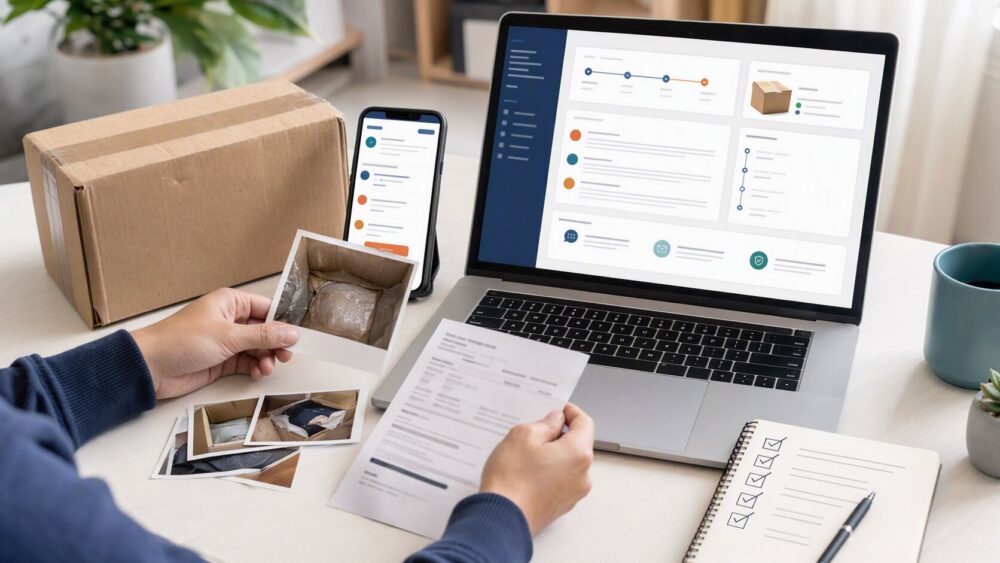
Quick answer: To file a dispute on DHgate, open the affected order in My Orders, select the refund, return, or dispute option currently shown for that order, choose the reason that matches the issue, and upload clear evidence. Keep seller communication inside DHgate. If the issue is not resolved through the order thread, follow the mediation or support option shown in the same case flow.
What a DHgate dispute covers
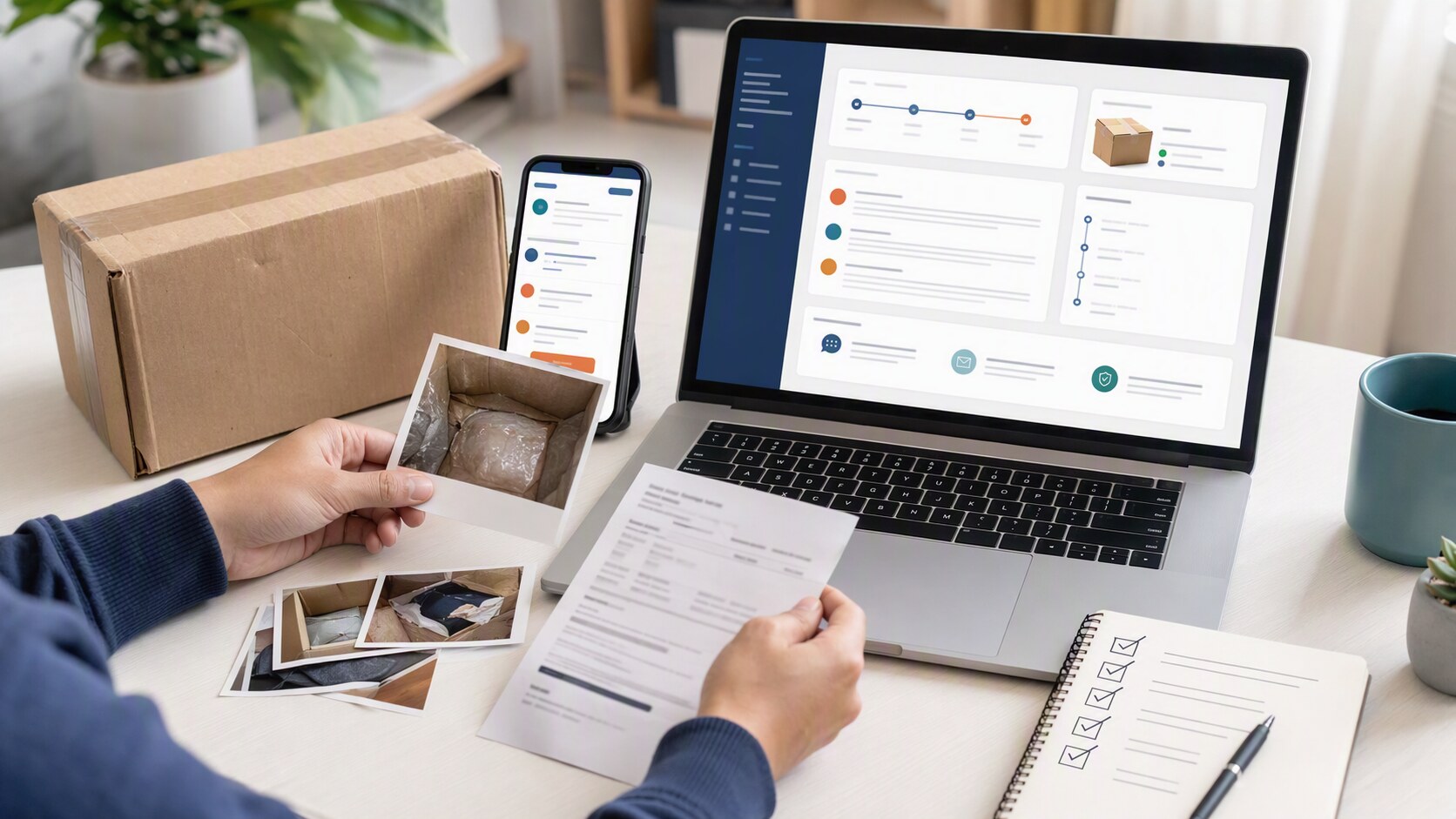
Most first-time buyers are not asking for a generic refund policy. They want to know what DHgate actually reviews, where the dispute starts, and what evidence makes a case easier to understand. That is the practical question behind “how to file dispute on dhgate.”
On DHgate, a dispute is an order-based process, not a blanket promise about every purchase. It is used when the buyer needs DHgate’s order and mediation tools because something went wrong with the transaction record, delivery, or item condition. Common reasons include an order that was not received, arrived damaged, arrived wrong, or did not match the listing description.
A useful way to think about it is simple: the dispute is not just a complaint form. It is the platform’s official workflow for attaching the order, the reason, the messages, and the evidence to one case.
Where the dispute process lives in your DHgate account
DHgate is a marketplace platform, so the dispute process lives inside the order record rather than in a separate customer-service queue. The official help pages and DHgate guidance point buyers back to My Orders, the order details page, and the dispute link or return-and-refund option for the specific order.
In that workflow, the buyer opens the order, selects the issue type, and submits the case from the order page. DHgate’s own help content also shows that the seller is expected to respond through the same dispute thread, which keeps the case attached to the transaction record.
That structure matters because DHgate is not reviewing a general account complaint. It is reviewing what happened on one order, with the order page, messages, tracking, and uploaded evidence as the case file.
How DHgate buyer protection and mediation work
DHgate’s buyer-protection path is built around the order record: open the dispute, choose the reason, upload evidence, message the seller, and escalate if the issue is not resolved. Official DHgate help content describes dispute handling as a sequence that starts with the order page and can move to DHgate mediation when the buyer and seller do not reach agreement.
A practical summary of the process is:
- Open the order in your DHgate account.
- Start the dispute from the order details page.
- Choose the reason that matches the actual problem.
- Upload supporting evidence.
- Use DHgate messages to communicate with the seller.
- If the case is not resolved after the seller response window, request DHgate mediation through the order/dispute flow.
For evidence, DHgate’s own guidance and support materials point buyers toward photos, videos, tracking information, and message history. That is because the review is stronger when the case shows what was ordered, what was received, what the tracking showed, and what the seller said in the platform thread.
If you are filing for a damaged item, a wrong item, or an item not as described, the most useful evidence is usually clear photos or video, packaging images, and a screenshot of the listing or order details. If the issue is non-receipt, tracking screenshots and delivery-status records matter most.
What to check before and during a dispute
A stronger DHgate dispute starts before you click the button. The goal is to make the order record easy to review.
Check these signals before and during the case:
- Order details: Make sure the order number, item name, and status match the problem you are reporting.
- Listing screenshots: Save the product page or key claims before the listing changes.
- Message history: Keep all important communication inside DHgate messages so it stays attached to the case.
- Tracking records: Capture tracking pages, delivery scans, and any status changes.
- Evidence consistency: Make sure your photos, description, and dispute reason all tell the same story.
- Reason selection: Choose the dispute reason that matches the actual issue, not the one that sounds easiest.
A concise rule helps here: the dispute should read like a documented order record, not a general complaint. If the order was not received, say that and show the tracking. If the item was damaged, show the damage and the packaging. If the item was wrong or not as described, show the listing and the item side by side.
How to file a DHgate dispute step by step
Here is the practical workflow for a U.S. buyer using DHgate’s own order tools.
- Log in to your DHgate account. Go to your account area and open My Orders.
- Find the exact order. Open the order details for the item with the problem.
- Start the dispute from the order page. Look for Open a Dispute, Return & Refund, or the related dispute option shown on that order.
- Choose the correct reason. Match the reason to the actual issue: not received, damaged, wrong item, or not as described.
- Upload evidence. Add photos, videos, tracking screenshots, and message screenshots that support the case.
- Message the seller through DHgate. Keep the conversation in the platform thread so it stays part of the record.
- Escalate if needed. If the seller does not resolve the issue, request DHgate mediation through the order/dispute flow after the seller response window.
A few practical habits make the process easier:
- Do not confirm receipt before you have checked the order.
- Save screenshots as soon as you notice a problem.
- Keep your explanation short, factual, and tied to the evidence.
- Use the dispute page as the main record, not outside channels.
If you want a simple message template, use this:
Hello, I am opening a dispute for this order because the item received does not match the listing / was not received / arrived damaged. I have uploaded photos, tracking, and order screenshots. Please review the evidence and respond through the dispute page.
That keeps the request direct and easy to review.
For a first-time buyer, the main goal is not to write a long explanation. It is to build a clean order file inside DHgate: the order page, the reason, the evidence, the seller response, and, if needed, mediation.
If the seller responds with a resolution you can accept, the case can move forward from there. If the issue is not resolved, DHgate mediation can review the case using the materials in the dispute thread. The key is to keep the case aligned with the facts you can document.
Dispute evidence checklist
- Correct order: Confirm the order number, item, selected variation, and order status before opening a case.
- Issue reason: Choose the reason that matches the facts, such as non-receipt, damage, wrong item, missing quantity, or not as described.
- Listing record: Save screenshots of the product page, selected variation, and relevant claims before they change.
- Package and item evidence: Use clear photos or video of the package, shipping label, item condition, and the specific problem.
- Tracking and messages: Keep tracking updates and seller communication inside the platform thread whenever possible.
- Factual explanation: Keep the request brief, specific, and tied to the evidence you uploaded.
FAQ
How do I start a dispute on DHgate?
Open the affected order in My Orders and use the refund, return, or dispute option currently shown for that order.
What if I do not see a dispute or refund button?
Check the current order details and status first. Available actions can change by order stage, so follow the support or after-sales option shown for that specific order.
What evidence should I upload?
Use evidence that directly matches the issue: tracking for non-receipt, photos or video for damage, and listing screenshots plus item photos for wrong or not-as-described orders.
Should I message the seller first?
Follow the workflow shown in your order. If seller communication is needed, keep it inside DHgate so it remains connected to the order record.
Can every dispute or refund request be approved?
No. The outcome depends on the order, selected reason, evidence, seller response, available options, and the applicable platform review process.
Next step
Open the affected order in My Orders, save the evidence that matches the issue, and start from the refund, return, dispute, or support action shown on the current order details page. Do not submit repeated or conflicting requests while the order status is unclear.
Sources and further reading
- DHgate Blog — Dispute at DHgate: Solutions to Common Questions
- DHgate Blog — How to Check the Status of Your Dispute on DHgate
- DHgate Blog — DHgate Customer Service and Support
- DHgate Blog — How to Upload and Send Video Evidence to DHgate
- DHgate Blog — How Does DHgate Shipping Work?
Note: Refund, return, dispute, seller-response, mediation, and support options can vary by order status and current platform rules. Always start from the actions shown in your own order details.