
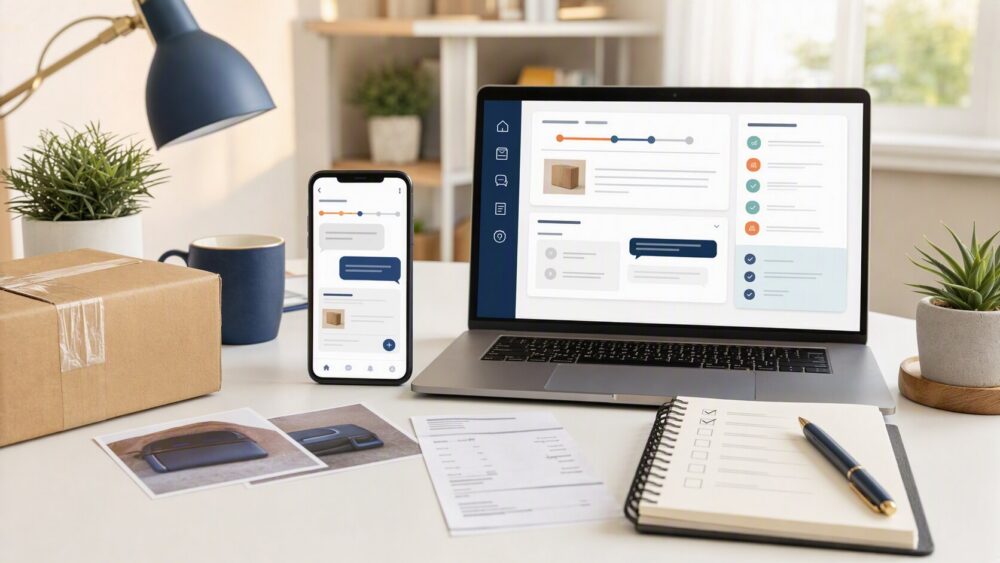
Quick answer: To return an item on DHgate, open the affected order in My Orders and use the Return & Refund, refund, return, dispute, or support option currently shown for that order. Select the reason that accurately matches the issue, keep seller communication inside DHgate, and upload clear evidence such as listing screenshots, package photos, item photos or video, tracking details, and order messages. Available actions and outcomes depend on the order status, evidence, seller response, and current platform rules.
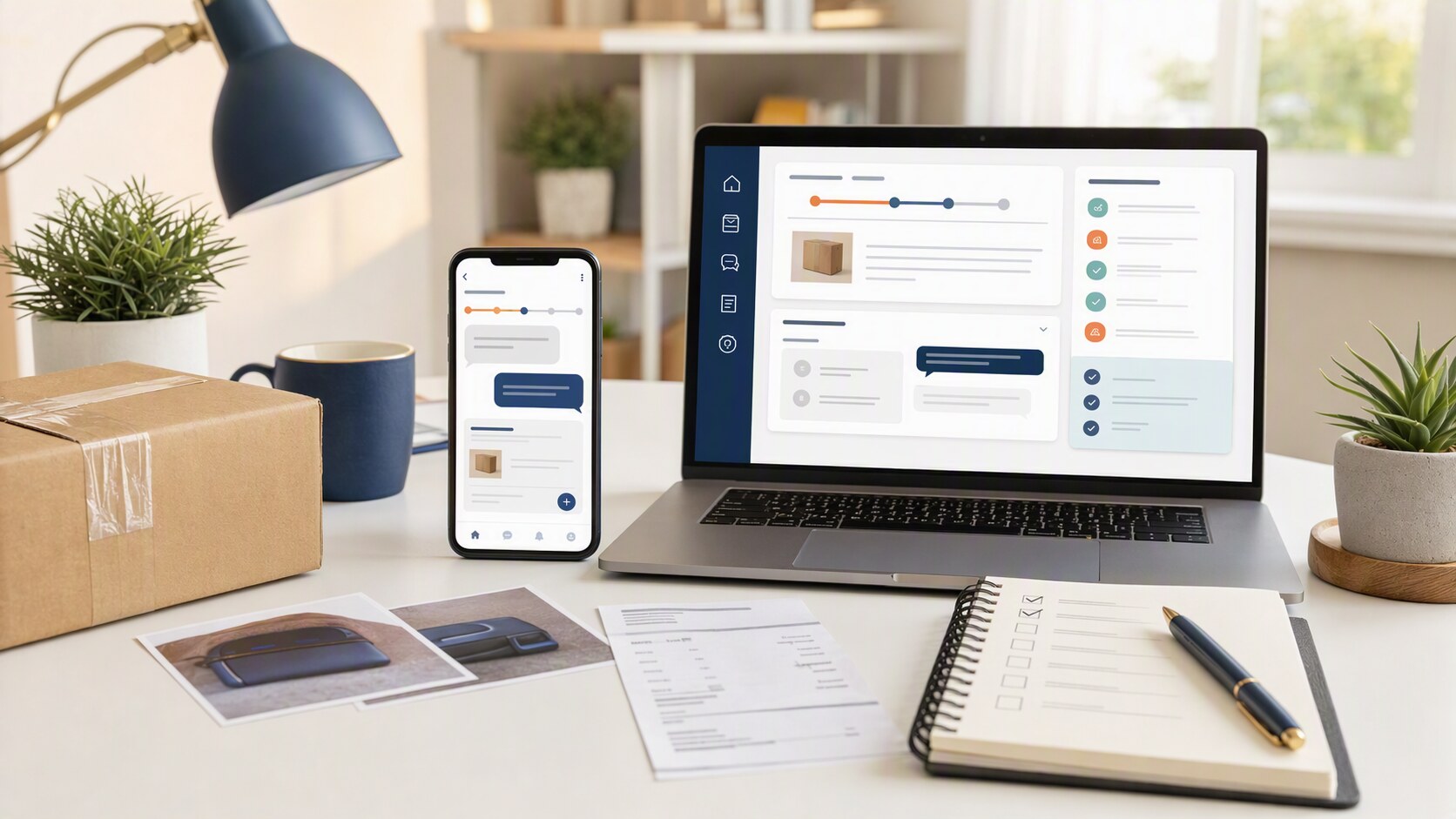
Can You Return a DHgate Order?
Yes, a return or refund request can be relevant when the issue is connected to the order itself and handled through DHgate’s order process. That includes cases where the item is not received, arrives damaged, is wrong, or does not match the listing in a significant way. The return question is not about sending a package back on your own first; it is about using the order page and the platform’s Return & Refund or dispute path.
The most useful first step is to open the order record and confirm what the listing said, what was shipped, and what problem you are documenting. If the issue belongs in DHgate’s order process, the request should stay tied to that order rather than being handled outside the platform.
Timing and documentation matter. The platform’s review depends on when the issue is raised and what evidence is attached, so the order record should be preserved from the start.
DHgate Return Rules and Order Windows
DHgate’s return and refund handling is order-based, not a blanket promise that every item can be sent back in every situation. The seller’s terms, the order status, and the reason for the request all affect how the case is reviewed. DHgate’s own guidance directs buyers to use the order details page, the Return & Refund path, and the dispute process when there is a delivery or product issue.
In practice, that means the buyer should check the order page before taking action. The order record shows the item purchased, the shipping status, and the place where the return or dispute request belongs. If the seller’s instructions or the platform’s order tools give a specific next step, follow that path rather than mailing anything back without direction.
For a return request, the order window and the evidence attached to the case are part of the review. That is why the buyer should keep screenshots, messages, and shipping records together in one place.
How DHgate Buyer Protection and Disputes Work
DHgate’s buyer-protection path is built around the order record, seller response, and platform review. If an item is not received, damaged, wrong, or significantly not as described, the buyer can use the Return & Refund or Open Dispute flow from the order details page. DHgate’s help materials also direct buyers to upload evidence, let the seller respond, and escalate the case to DHgate if the issue is not resolved.
A practical workflow looks like this:
- Log in to your DHgate account.
- Open My Orders.
- Select the order in question.
- Open Order Details.
- Choose Return & Refund or Open Dispute.
- Select the issue type that matches the order problem.
- Upload photos, videos, tracking screenshots, or other proof.
- Submit the request and wait for the seller’s response.
- If needed, escalate the case to DHgate for review.
The strongest cases are the ones that match the actual order issue and stay inside the platform. If the item never arrived, the evidence should focus on tracking and delivery status. If the item arrived damaged or wrong, the evidence should show the product, packaging, and listing comparison. If the item is significantly not as described, the dispute should explain exactly what differs from the listing.
If a return is required, follow the instructions shown in the current order and dispute flow. Do not send an item to any address unless the order process clearly provides return instructions and you can retain the shipment record.
How to Check a DHgate Seller Before You Buy
Before checkout, use the listing and seller page to reduce preventable return problems. On DHgate, the listing becomes part of the evidence record, so the quality of the page matters. A clear listing makes it easier to compare what was promised with what arrives later.
Look for these buyer checks before ordering:
- Clear photos that show the item being sold
- Detailed size, material, color, and variant information
- Recent buyer feedback that mentions the same item
- A seller profile with visible transaction history and response patterns
- Listing language that matches the product you expect to receive
- Shipping and return terms that are easy to find before payment
If a listing is vague or missing measurements, save screenshots before buying. Those screenshots can help later if the item arrives differently from what was shown. For small-business buyers, this is especially useful when ordering samples or testing a product line, because the listing page often becomes the baseline for any later dispute.
A Practical First-Order Workflow on DHgate
A careful first order on DHgate is mostly about keeping the record clean from the start. Here is a simple workflow you can use:
- Read the full listing before you pay.
- Save screenshots of the product page, price, variant, and shipping details.
- Message the seller on DHgate if you need clarification on size, color, packaging, or timing.
- Place the order and keep the order number in one place.
- When the package arrives, record the unboxing before using the item.
- Compare the item to the listing right away.
- If there is a problem, open Return & Refund or Open Dispute from the order details page.
- Upload clear evidence and keep all communication inside DHgate until the case is resolved.
For a first order, the goal is not to predict the outcome. The goal is to make the order easy to review if you need to send it back. That means saving the listing, keeping the messages, and acting within the order window instead of waiting too long.
If you want the cleanest path through a return request, treat DHgate as an order-record system first and a messaging system second: document the listing, inspect the delivery immediately, and use the platform’s dispute tools as soon as the issue is clear.
Return and refund checklist
- Open the exact order and check its current status.
- Use the return, refund, dispute, or support action currently shown for that order.
- Select the reason that matches the actual issue.
- Save the listing, selected variation, order details, seller messages, tracking, package photos, and item photos or video.
- Keep all communication inside DHgate so it remains connected to the order record.
- Do not ship an item anywhere until the current order process provides return instructions.
FAQ
Do I send the item back to DHgate?
Follow the return instructions shown in the current order and dispute flow. Do not send an item to any address unless the order process clearly provides the return instructions and you can retain the shipment record.
Should I contact the seller first?
Follow the workflow shown for your current order. If seller communication is available or requested, keep it inside DHgate so it remains part of the order record.
What evidence should I save?
Save the listing, selected variation, order details, seller messages, tracking information, package photos, and clear photos or video of the item and the issue.
Can I return an item for personal reasons?
Check the current order details and seller terms. Available actions can depend on the order, reason, seller response, and current platform rules.
What if the seller does not respond?
Use the dispute, mediation, or support option shown in the current order flow, and keep your evidence connected to the order record.
Next step
Open the order details page in your DHgate account, review the available actions and the issue type, and organize your evidence before submitting a return, refund, dispute, or support request.
Sources and further reading
- DHgate Blog — DHgate Refund Guide
- DHgate Blog — How to Cancel a DHgate Order Before Shipping
- DHgate Blog — How Does DHgate Shipping Work?
- DHgate Blog — What Shipping Carrier Does DHgate Use?
Note: Return, refund, dispute, seller-response, and support options can vary by order status and current platform rules. Always begin with the actions shown in your own order details.