
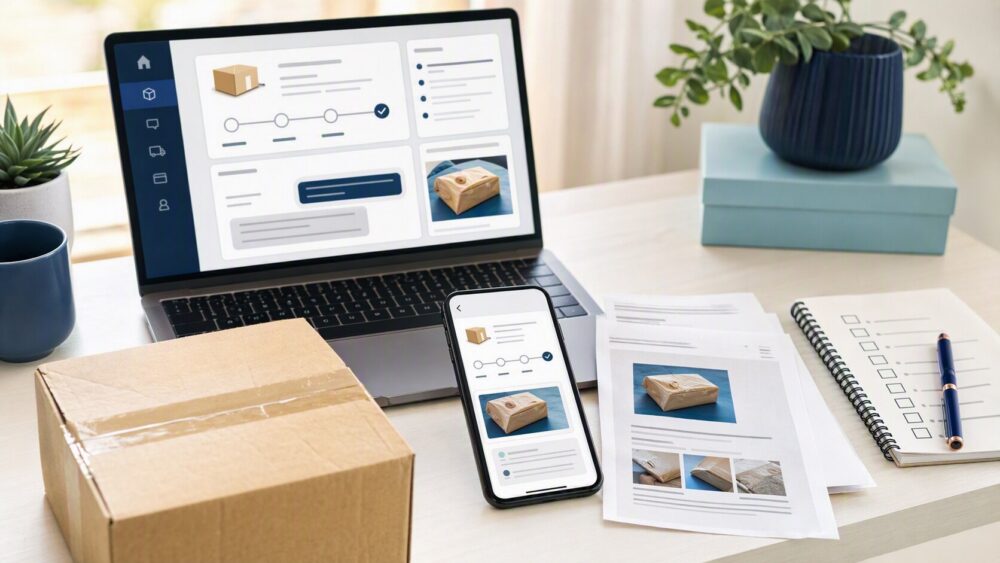
Quick answer: If a DHgate order has arrived with a documented problem, open the affected order in My Orders and use the Return & Refund, refund, dispute, or support option currently shown for that order. Select the reason that accurately matches the issue, keep seller communication inside DHgate, and upload clear evidence such as listing screenshots, package photos, item photos or video, tracking details, and order messages. The available actions and outcome depend on the order status, evidence, seller response, and current platform rules.
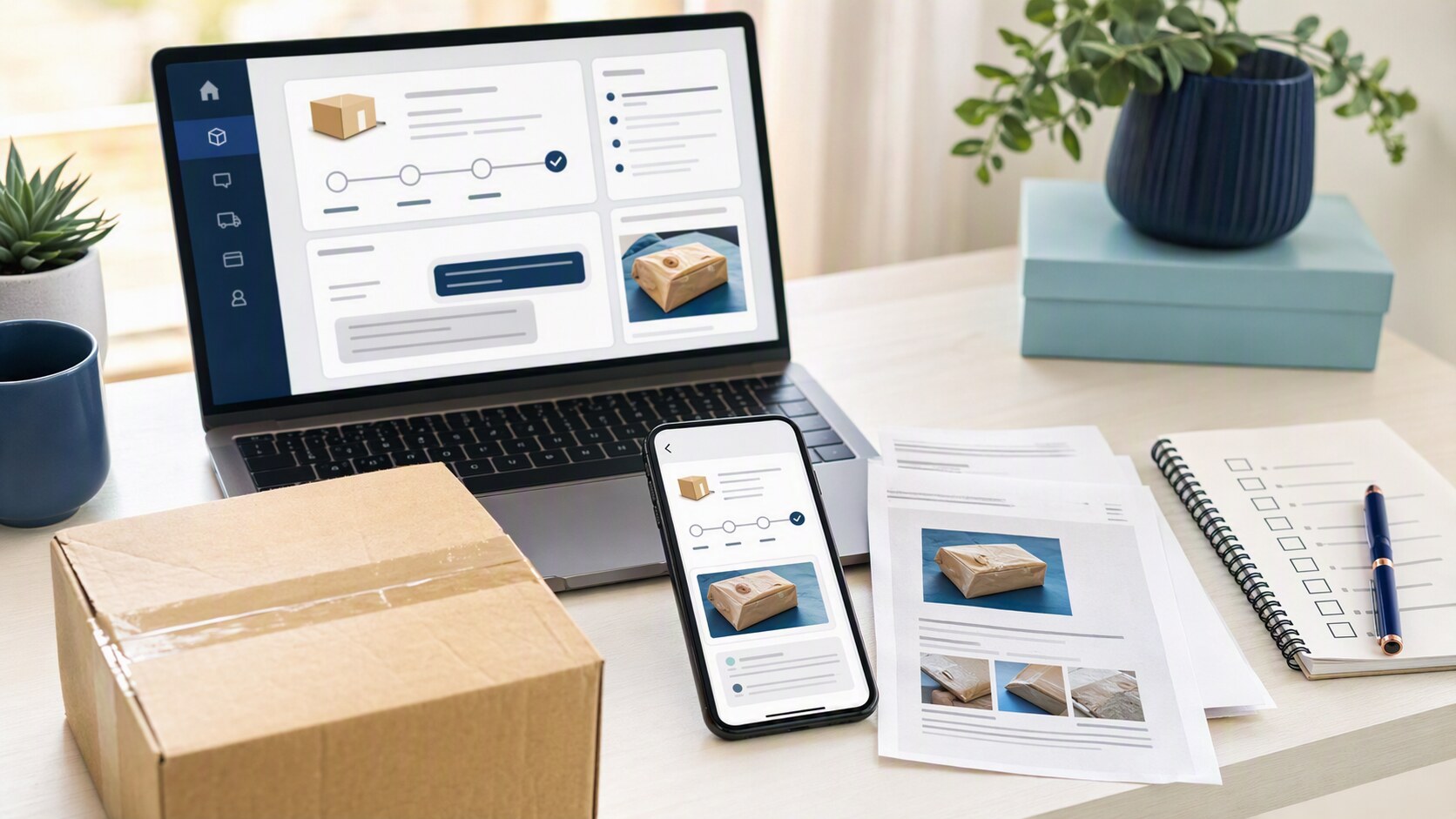
Can You Request a Refund After Delivery on DHgate?
Yes. If a delivered item arrives damaged, wrong, missing parts, or not as described, you can start a refund request through the DHgate order. The platform’s own help materials and refund guidance describe post-delivery refund requests as part of the normal after-sales flow, not as a separate process.
A simple way to think about it is this: delivery does not end the conversation if the order does not match what was promised. The issue has to be tied to the order itself, and the request should match the problem you can show in photos, messages, or listing screenshots.
Short answer: if the item arrived with a real order problem, DHgate gives you a path to ask for a refund through the order tools. If the item is exactly as described and you simply changed your mind, the request is handled under the order’s return rules and seller terms rather than as an automatic refund.
Which DHgate Order Rules Control Refund Requests?
DHgate handles refund requests through the marketplace order record, seller messaging, and the after-sales/dispute flow. That matters because the platform reviews the transaction as an order-based case, not as a general customer-service complaint.
Official DHgate guidance and help content point buyers to the order page, the seller contact path, and the dispute option when the issue is not resolved directly. In other words, the order itself is the control center: it shows the status, the available action buttons, and the timing window for the case.
Two boundaries are worth keeping in mind:
- Each order is assessed from its own record.
- Timing and documentation help a buyer use the process.
Those two points are the difference between guessing and using the system correctly. If the order page shows a dispute or return option, use that path rather than moving the conversation off-platform.
How DHgate Disputes and Mediation Work After Receipt
When a delivered order has a problem, the usual DHgate path is: open a dispute, explain the issue, upload evidence, wait for the seller response, and escalate to mediation if needed. That sequence is the core of the buyer-protection process.
Here is the practical flow:
- Open the dispute from the order page.
- State the problem clearly: damaged item, wrong item, missing parts, or not as described.
- Upload evidence.
- Let the seller respond inside the order thread.
- If you cannot reach agreement, request DHgate mediation through the platform.
The strongest cases are the ones that stay organized. Clear photos, short written explanations, and screenshots from the listing or messages make it easier for DHgate to review what happened. If the seller offers a partial refund, replacement, or return-and-refund option, compare that offer to the actual issue and the evidence you have already uploaded.
What matters most: the dispute is not just a message saying something went wrong. It is a documented case inside DHgate with the order number, the problem, and proof.
What Seller Checks Help a Refund Case Stay Clean?
A good refund case starts before the package arrives. When you evaluate a DHgate seller and listing carefully, you create a cleaner record if you ever need to request a refund.
Focus on three things before and after purchase:
- Listing detail quality: Does the product page clearly describe the item, variant, size, color, quantity, and included parts?
- Message history: Did the seller answer questions directly and in writing?
- Expectation match: Do the photos, description, and your messages line up with what you received?
If the listing is vague, save screenshots before checkout. If the seller confirms a detail in messages, keep that thread. If the package arrives and something is off, those records help show what was promised versus what was delivered.
For U.S. buyers and small-business readers, this is especially useful when ordering repeatable inventory or test quantities. A clean paper trail makes the refund process easier to explain and easier to review.
How to Request a Refund on DHgate After the Order Arrives
Start with the item itself, then move into the order tools. The goal is to keep the case inside DHgate and make the problem easy to review.
Step 1: Inspect the package immediately.
Check for damage, missing parts, wrong size, wrong color, or anything that does not match the listing.
Step 2: Photograph everything before you discard packaging.
Take clear photos of the item, the box, the label, inserts, and any visible defect or mismatch.
Step 3: Save the listing and message evidence.
Screenshot the product page and any seller messages that describe what you expected to receive.
Step 4: Go to DHgate and open My Orders.
Find the specific order and use the refund or dispute option shown for that order.
Step 5: Write a short, factual case summary.
State what arrived, what was wrong, and what resolution you want: full refund, partial refund, or return-and-refund.
Step 6: Upload evidence before the deadline shown on the order page.
Use the order window and the documentation you already collected.
Step 7: Keep the conversation on-platform until the case is resolved.
If the seller replies, respond inside DHgate so the full record stays attached to the order.
The actions, deadlines, and buttons shown in an order can change with its status. Before taking action, use the current order details page as the source of truth and follow the refund, return, dispute, or support option shown for that specific purchase.
A practical first message you can use:
I received this DHgate order, but it does not match the listing. The item arrived [damaged / wrong / missing parts / not as described]. I have attached photos and screenshots of the listing. I am requesting a [full refund / partial refund / return-and-refund] through the order dispute process.
That message works because it is short, specific, and tied to the order record. It gives DHgate and the seller the information they need without adding extra noise.
If you are asking, “can you refund items on dhgate when it arrives,” the practical answer is yes when the delivered order has a documented problem and you use the platform’s order tools correctly. The strongest cases are the ones opened promptly, supported with evidence, and kept inside the DHgate dispute flow from start to finish.
Refund request checklist
- Open the correct order and check its current status and available actions.
- Choose the reason that accurately matches the actual order problem.
- Save the listing, selected variation, order details, seller messages, tracking, and package evidence.
- Use photos or video that directly show the issue.
- Keep seller communication inside DHgate.
- Follow the refund, return, dispute, or support action currently shown for that order.
FAQ
Can I ask for a refund after the package is delivered?
If the delivered item has a documented order problem, open the affected order and follow the refund, return, dispute, or support option currently shown for that order.
Should I contact the seller first?
Follow the workflow shown for your current order. If seller communication is available or requested, keep it inside DHgate so it remains part of the order record.
What evidence helps most?
Use evidence that directly shows the issue: listing screenshots, seller messages, package photos, clear item photos or video, and tracking details where relevant.
What if the seller offers a partial refund or replacement?
Review the options currently shown in the order record and compare any seller proposal with the issue and evidence you have documented before agreeing to it.
What if we cannot agree?
Use the mediation or support option shown in the current order flow, and keep all evidence connected to the order record.
Next step
Open the affected order, record the issue before discarding any packaging, and use the current refund, return, dispute, or support action shown in the order details before the deadline displayed for that purchase.
Sources and further reading
- DHgate Blog — DHgate Refund Guide
- DHgate Blog — How to Cancel a DHgate Order Before Shipping
- DHgate Blog — How Does DHgate Shipping Work?
- DHgate Blog — What Shipping Carrier Does DHgate Use?
Note: Refund, return, dispute, seller-response, mediation, and support options can vary by order status and current platform rules. Always begin with the actions shown in your own order details.