
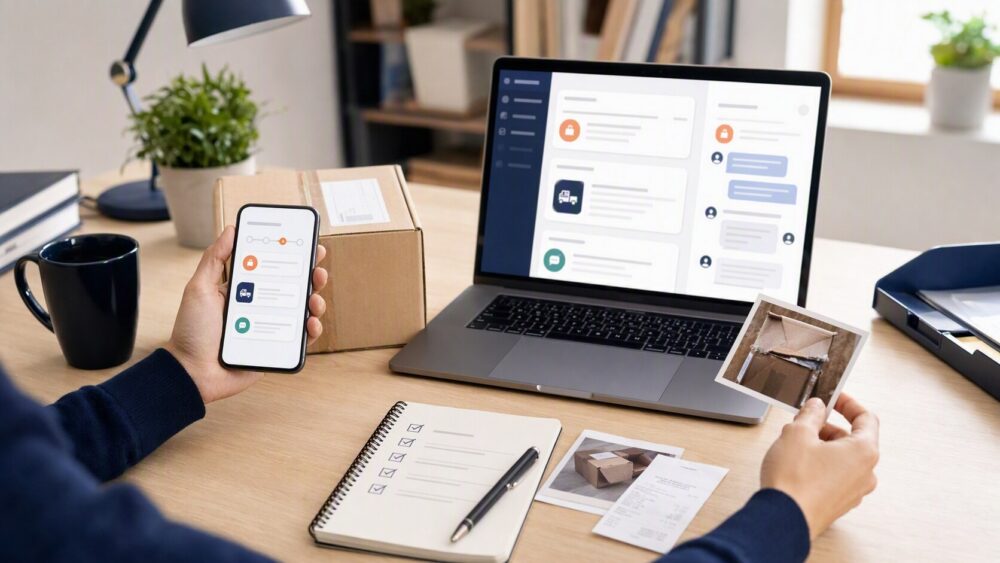
Quick answer: To request a refund in the DHgate app, open the affected order in My Orders, choose the refund, return, or dispute option shown for that order, select the reason that matches the issue, and upload clear evidence. The available buttons can vary by order status, so use the current order details page as your starting point and keep messages inside DHgate.
What First-Time Buyers Are Asking About a DHgate Refund
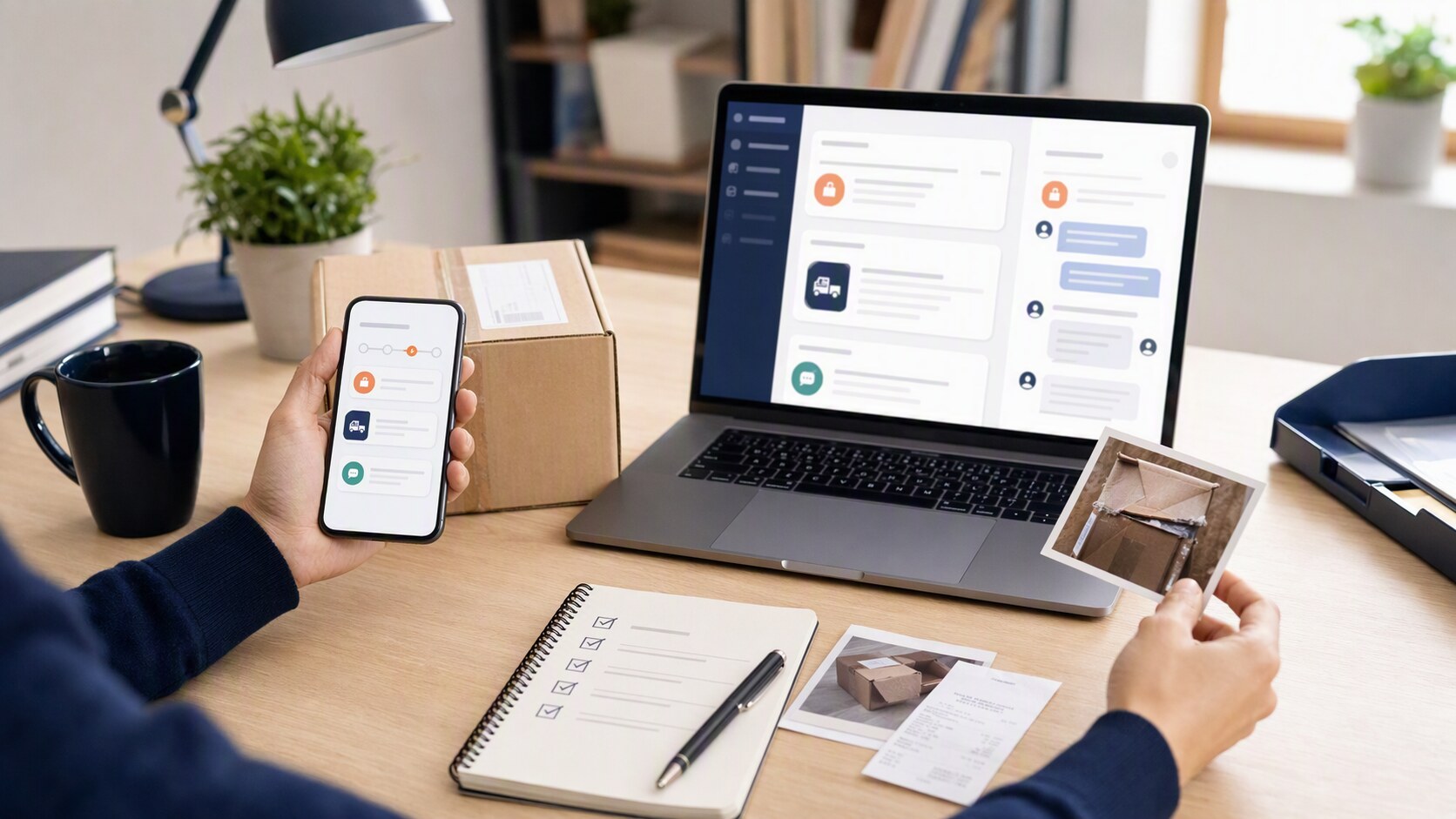
Most buyers want the same answer: what exactly do I tap in the DHgate app, and what should I have ready before I submit the request? The short version is that a refund request is usually tied to one order and one issue, not a broad account complaint. If the order was not received, arrived damaged, was the wrong item, or did not match the listing, the refund path is built around that order record.
A practical way to think about it is this: the app is asking you to show what went wrong, where it happened, and what proof supports your request. That usually means your order page, your messages with the seller, and any photos, videos, or tracking records that help explain the problem.
Two neutral boundaries matter here: each order is assessed from its own record; timing and documentation help a buyer use the process.
How DHgate Works as a Marketplace
DHgate is a marketplace, so the refund path is controlled by the order state and the tools attached to that order. The official help and app guidance point buyers to My Orders, then to the relevant order’s Refund & Dispute, Request Refund, Open Dispute, or Return/Refund options, depending on what the app shows for that order.
That means the refund process is not a separate form floating outside the purchase. It is part of the order lifecycle. If the order is still active, the app may show one set of actions; if the order has moved forward, the available buttons can change. DHgate’s own help pages also direct buyers to customer-service paths in the app when they need support beyond the order page.
For buyers, the important point is straightforward: the app’s order status and support tools determine what you can do next. If you are trying to figure out how to get refund on dhgate app, start by opening the exact order first, not by searching the app generally.
How DHgate Buyer Protection and Disputes Work
DHgate’s buyer-protection flow is designed around the order record, seller response, and escalation if needed. Official help materials describe a process where the buyer opens a dispute or refund request from the order, submits the reason and evidence, and then the seller has a chance to respond. If the issue is not resolved through that exchange, the case can move to DHgate review or mediation.
The process is easiest to understand as a sequence:
- Open the order in My Orders.
- Choose the refund or dispute option shown for that order.
- Select the reason that matches the problem.
- Add evidence.
- Submit the case.
- Review the seller’s response.
- Escalate through the platform if the case needs DHgate intervention.
The issue types that commonly fit this path are the ones buyers ask about most: item not received, damaged item, wrong item, missing quantity, or item not as described. DHgate’s help content also notes that refund handling depends on the documented case path and the order record, so the strongest cases are the ones that stay factual and complete.
If you are using the app after delivery, do not rely on memory alone. Put the listing, the received item, and the seller’s messages side by side. That makes it easier to explain the gap between what was ordered and what arrived.
What to Check on a DHgate Listing Before You Need a Refund
A refund process is often useful as backup, not as the first plan. Before you order on DHgate, check the listing and seller signals that help you understand what you are buying and how clearly the seller presents it.
A useful DHgate-specific checklist looks like this:
- Listing clarity: Does the product page describe size, material, variant, and included items clearly?
- Photo consistency: Do the listing photos look consistent with the written description?
- Recent feedback: Are recent buyer comments relevant to the exact item you want?
- Seller communication: Does the seller answer questions clearly in the message center?
- Variant detail: Are color, size, quantity, and package contents easy to confirm before checkout?
- Order record readiness: Will the order page and messages give you a clean paper trail if you need to open a case later?
For U.S. buyers and small-business readers, the most practical habit is to treat the message center as part of the purchase decision. Ask one or two direct questions before ordering if anything is unclear, and save the reply inside DHgate. That gives you a cleaner record if the item is not received, damaged, wrong, or not as described.
Step-by-Step: Request a Refund in the DHgate App
If you are ready to act, keep the case tied to the exact order from the start.
- Open the DHgate app and go to Account, then My Orders.
- Choose the exact order connected to the problem and open its order details.
- Use the refund, return, or dispute option currently shown for that order.
- Select the reason that best matches the issue, such as an item not received, wrong item, damage, missing quantity, or an item not as described.
- Add evidence that directly supports the issue: listing screenshots, photos or video, packaging photos, tracking screenshots, and seller messages where relevant.
- Submit the request and review the order thread for seller replies or further prompts from DHgate.
- Use the order-based escalation or support option if the issue remains unresolved.
The labels and buttons available in the app can vary by order status. Use the current order details page as the starting point, then follow the refund, return, dispute, or support option shown for that specific order.
Refund request checklist
- Correct order: Confirm you opened the exact order tied to the problem.
- Issue reason: Select the reason that matches what happened.
- Listing record: Save the product page, selected variation, and order confirmation.
- Evidence: Add photos, video, tracking, package images, and relevant seller messages.
- On-platform communication: Keep messages inside DHgate so they remain connected to the order record.
- Updates: Check the order thread and support prompts before assuming the case is complete.
FAQ
How do I start a refund in the DHgate app?
Open the affected order in My Orders and use the refund, return, or dispute option shown for that order.
What if I do not see a refund button?
Check the current order details and status first. Available actions can change with the order stage, so follow the support option shown for that order.
What evidence should I upload?
Use photos, video, package images, tracking screenshots, listing screenshots, and seller messages that directly show the issue.
Should I message the seller first?
Follow the workflow shown in your order. If seller communication is needed, keep it inside DHgate so it remains connected to the order record.
Can every refund request be approved?
No. The outcome depends on the order, the reason selected, the evidence provided, seller response, and the applicable platform review process.
Next step
Open the exact order in the DHgate app, review the action currently available, and gather your listing record, messages, tracking information, and evidence before submitting a request.
Sources and further reading
- DHgate Blog — How to Cancel a DHgate Order Before Shipping
- DHgate Blog — Is It Safe to Buy Shoes From DHgate?
- DHgate Blog — What Is DHgate App?
Note: Refund, return, dispute, seller-response, and support options can vary by order status and current platform rules. Always use the action shown in your own order details before submitting a request.