
Quick answer
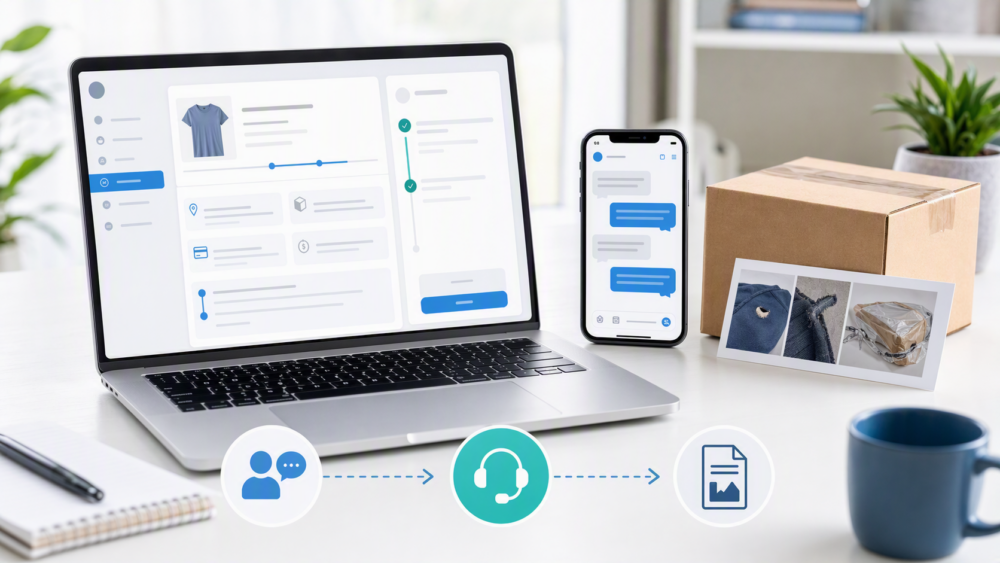
For a product-specific issue, contact the seller through the order first. If the seller does not respond, or the issue involves shipping, tracking, or an available dispute option, use the account-based DHgate support tools shown for that order. Keep the order number, tracking number, seller messages, and clear photos or video ready before you ask for help.
Should I contact the seller first or go straight to DHgate?
For an item-quality, missing-part, wrong-variation, or other product-specific concern, start by messaging the seller through the order. Keep the request clear: identify the problem, attach relevant evidence, and state the outcome you are seeking.
If the seller does not respond, or if the issue concerns order status, shipping, tracking, or an account option you cannot resolve from the order page, use DHgate’s support channels. DHgate’s customer-service guidance describes online chat and account-based support paths; the exact buttons available can vary by order and account.
How do DHgate customer-service tools work inside the account?
Start from the relevant order record. Review its current status, seller-message history, tracking details, and the actions displayed for that purchase. DHgate also directs buyers to support through online chat and customer-service tools, while the account may show order-specific paths such as Contact Us, Report a Problem, or a claim or dispute option.
- Product issue: message the seller first and attach evidence.
- Seller not responding: use the support option shown in the account or order record.
- Shipping or tracking issue: review the tracking details first, then ask for help if the information is still unavailable or unclear.
- Claim or dispute issue: follow the order-specific flow and requirements displayed in your account.
Do not rely on a single universal contact method or assume every order offers the same action. Use the current order page as the source of truth.
What should I have ready before contacting support?
Prepare the details that help the seller or support team identify the purchase and understand the issue quickly:
| Item | Why it helps |
|---|---|
| Order number | Lets support locate the purchase quickly. |
| Seller or store name | Helps identify the correct order and conversation thread. |
| Product name or listing link | Clarifies which item is affected. |
| Tracking number | Useful for delivery or status questions. |
| Photos or video | Documents damage, missing items, or an item that differs from the order. |
| Short issue summary | Explains what happened and the outcome you are requesting. |
For a tracking problem, first check the number in the order details and compare it with the carrier update where available. DHgate’s order-tracking guidance explains the basic tracking workflow. Keep evidence tied to the specific order rather than sending an unstructured description.
When should I escalate from the seller to DHgate?
Use the seller first when the problem is product-specific and the seller is actively responding. Escalate through the account when the seller does not respond, when shipping or order information requires platform help, or when the order page presents an issue-reporting, claim, or dispute path.
| Situation | Start here | Use DHgate support when |
|---|---|---|
| Item is missing, damaged, wrong, or differs from the listing | Message the seller through the order and attach photos or video. | The seller does not respond, refuses to address the issue, or the order presents an available escalation path. |
| Tracking has no clear update | Check the order status, tracking number, carrier update, and seller messages. | The information remains unavailable or the order page directs you to report the problem. |
| Part of an order is missing or delayed | Check whether separate items have separate shipment records and tracking numbers. | The seller cannot clarify the shipment or the order page offers support options. |
| You need to cancel or change an order detail | Check the current order status and any action displayed in the account. | No self-service action is available and the account directs you to customer service. |
Availability, timing, and outcomes can vary by seller, destination, order status, and the options shown in your account. Do not assume an outcome or a fixed deadline; follow the current instructions attached to the order.
What should I check in my DHgate account before I open a claim?
- Open the order record for the affected item.
- Review the order status, tracking number, and shipping details if delivery is involved.
- Read the seller-message or chat history and keep a record of what has been discussed.
- Check the current support actions shown for that order, such as Contact Us, Report a Problem, or another available option.
- Attach the evidence and a concise issue summary only through the relevant account flow.
If you use the app, follow the current account and order-support prompts. For general contact options, see DHgate’s customer-service contact guide. The practical rule is simple: start from the order, then choose the support action that matches the issue.
FAQ
Should I message the seller before DHgate?
For a product-specific issue, start with the seller through the order. Use account support if the seller does not respond or if the issue needs platform help.
What if tracking does not show updates?
Check the order status, tracking number, seller messages, and carrier information first. If the information remains unclear, use the support path available for that order.
Can I send photos or video with my issue?
Keep clear photos or video with the relevant order details when reporting damage, missing items, or a wrong item. Follow the upload instructions shown in the order-specific support flow.
What if the seller does not reply?
Use the customer-service or issue-reporting option displayed in your account and retain the order details and message history.
Next step
Open the affected order, save the order and tracking details, review the seller messages, and select the support action shown for that purchase. For broader account navigation, see the DHgate App and Account Guide for Buyers.
Sources and further reading
- DHgate Live Chat and Customer Service Support — general account-based support and chat guidance.
- How to Track Your Package Order Number on DHgate — order and tracking checks.
- How DHgate Shipping Works: Types and Timing — shipping context and delivery variability.
- How to Contact DHgate Customer Service — contact options and account-support context.
4 thoughts on “How to Contact DHgate Customer Service and Resolve an Order Issue”