
Quick answer
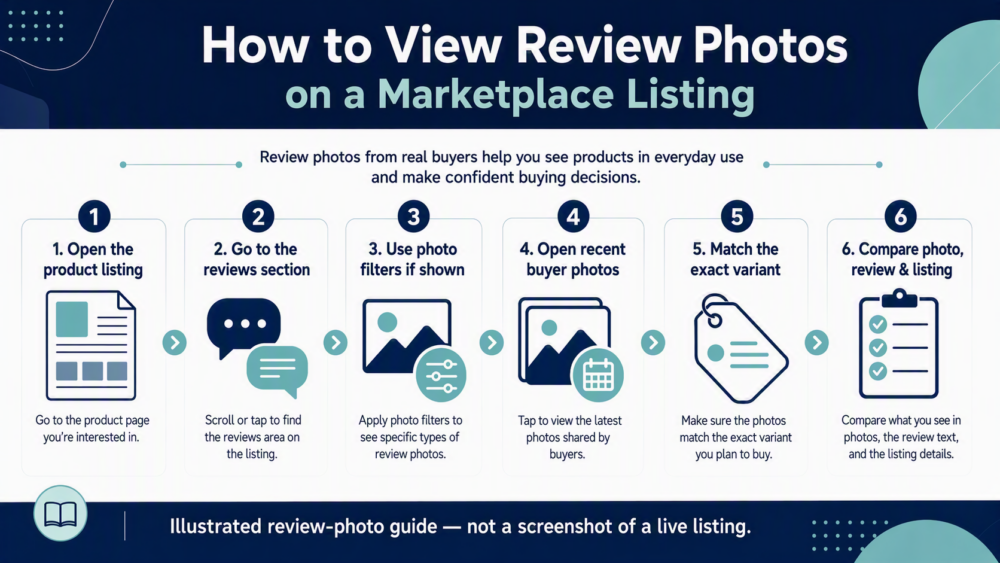
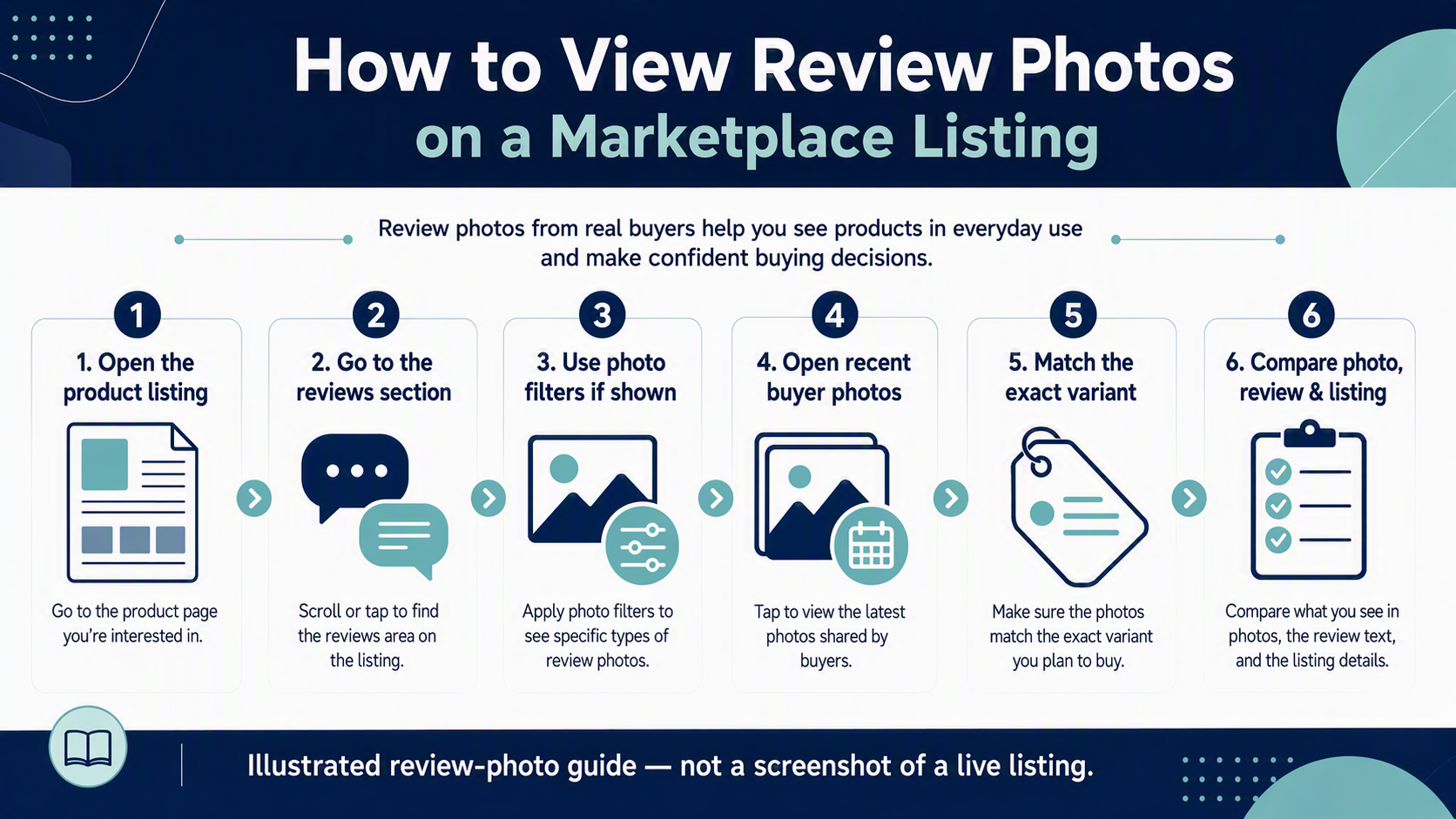
To view review photos on a DHgate product listing, open the listing and go to its reviews section. If the current page shows a Photos, With Images, or similar filter, use it to narrow the reviews, then open recent buyer images and read the written review beside them. Check that each photo matches the exact color, size, set, quantity, or version you plan to buy. Labels and placement can vary by device and listing, so use the live product page as the source of truth.
Where review photos appear on a DHgate listing
Start on the exact product page and variant you are considering. Scroll or navigate to the reviews area, where written buyer feedback may include attached images. Some listings show photo-focused controls or a visual thumbnail group; others show images only within individual reviews. Do not assume every product, app view, or desktop view will display the same controls or the same amount of buyer media.
When you find an image, open it together with the review that contains it when possible. The image is more useful when you can see what the buyer said about the item, which option they selected, and whether the review is recent enough to relate to the current listing.
How to filter or open buyer photos
- Open the exact listing. Confirm the item, option, and destination context you are researching before you begin reading reviews.
- Go to the reviews section. Look for written feedback, buyer media, image thumbnails, or a photo-related control on the live page.
- Use a photo filter only if it is shown. A control such as Photos, With Images, or Picture Reviews can help narrow the results, but its wording and availability may vary.
- Open more than one recent image. Do not make a decision from a single attractive or negative photo. Look for a pattern across multiple reviews where available.
- Read the review text. Check whether the buyer describes the same detail you are evaluating, such as material, color, dimensions, contents, fit, finish, or packaging.
- Return to the current listing. Compare the buyer evidence with the product description, selected variant, photos, and seller’s current written answer.
How to check that a photo matches your exact variant
A buyer photo can be genuine and still be a poor match for the option you plan to order. Treat it as product-specific evidence only after checking the details around it.
- Variant: Does the photo appear to show the same color, size, material, configuration, bundle, quantity, or accessory version you selected?
- Listing details: Do visible features such as finish, dimensions, pattern, packaging, or included parts align with the current description?
- Review context: Does the written comment support what the image seems to show, or does it describe a different version or issue?
- Recency: Older photos can still be helpful, but recent evidence is more useful when the listing, supplier, or available variants may have changed.
- Pattern: Do several independent photos and comments point in the same direction? One image cannot confirm the quality or availability of every current variation.
For example, a positive photo of a blue single item is not enough evidence for a black bundle or a different size. If the exact option matters to your decision, ask the seller to confirm that option in the DHgate message thread before paying.
What review photos can and cannot tell you
| Review photos can help you check | Review photos cannot guarantee |
|---|---|
| How an item may look in a buyer’s setting, including visible color, finish, packaging, or included pieces. | That your selected variant is currently in stock or will match every earlier buyer image. |
| Whether several buyers show a broadly similar item and describe a consistent experience. | That delivery timing, item condition, or seller performance will be the same for your order. |
| Whether the current listing deserves a closer check or a specific seller question. | That a single photo or rating proves the listing is suitable for you. |
Use photos as one part of a decision, not as a substitute for the live listing. The selected variant, current price and terms, shipping availability, and seller’s written reply should be reviewed separately.
When to pause before ordering
Pause, ask for clarification, or choose another listing when the photo evidence does not support the item you intend to buy. Common reasons include:
- the image appears to show a different color, size, bundle, quantity, or accessory set;
- the photo, written review, and current listing describe conflicting materials, dimensions, or contents;
- the only buyer photos are old, vague, or too unclear to judge the detail that matters;
- the current listing has little relevant evidence for the exact product option;
- the seller cannot confirm a decision-critical detail in the platform message thread; or
- the seller asks you to move important communication or payment off-platform.
What to save if you decide to order
Before checkout, save the current product page, selected option, the review images or comments that informed your decision, and the seller’s written reply to any important question. After delivery, compare the received item with the live listing and your saved record. If there is a problem, use the after-sale, return, refund, or dispute options currently available in that specific order, and provide the records requested there. DHgate’s guide to uploading video evidence may be useful if the order page asks you to submit video material.
FAQ
Where do I find buyer review photos on DHgate?
Open the product listing and go to its reviews area. Buyer images may appear inside individual reviews, in a thumbnail group, or behind a photo-related filter if the live listing provides one.
Does every DHgate listing have a photo-review filter?
No. Image controls, labels, and the number of buyer photos can vary by listing, device, and the reviews currently available. Use a filter only when it is shown on the live product page.
Should I trust a buyer photo by itself?
No. Read the accompanying review, identify the apparent variant, compare it with the current listing, and look for a pattern across more than one relevant photo or comment.
How can I tell whether a review image is for my selected option?
Compare the image and review text with the selected color, size, material, set, quantity, and included parts. If the match is uncertain, ask the seller to confirm the exact option in the on-platform message thread.
What should I do if review photos and the listing conflict?
Do not assume the current listing matches the photo. Ask for a written clarification, recheck the selected option and description, or choose another listing if the conflict remains unresolved.
Related guides
- How to Review DHgate Seller Ratings Before You Buy — compare seller-page signals, product-specific comments, buyer photos, and messages.
- How to Tell Whether a DHgate Seller Is Reputable: A Buyer Checklist — use a broader seller-screening process before a first order.