
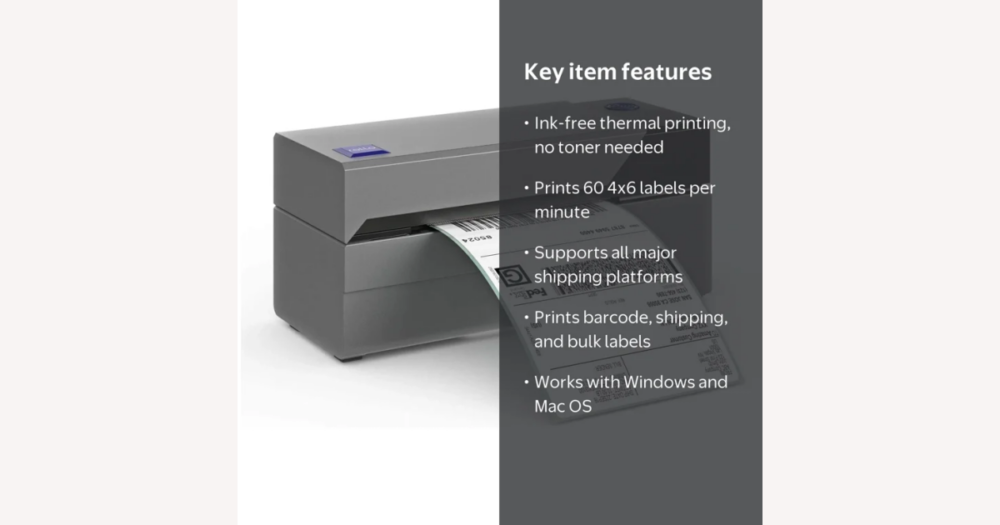
Rollo-style thermal printers are designed to handle standard 4×6 shipping labels, so they can usually work with major marketplaces and carrier tools as long as your device recognises them as a normal printer. On DHgate, though, each listing is its own product: before you buy, confirm that specific model’s operating system support, connection type and label-size capabilities so you don’t end up with a printer that looks like a Rollo but won’t cooperate with your shipping workflow.
How broadly compatible are Rollo-style printers with popular shipping and label software?
On DHgate and elsewhere, genuine Rollo printers and many Rollo‑style 4×6 thermal printers are marketed as working with major marketplaces and carrier tools because those services usually produce standard shipping labels. Platforms like eBay, Amazon or Shopify, and most courier systems, simply generate a label file that any supported system printer can output once your computer or mobile device recognises it.
For a DHgate buyer in the UK, that broad promise is encouraging but not automatic. A listing might describe an official Rollo, an older revision, or a generic 4×6 thermal printer using similar branding, and each of those can have different electronics, firmware and driver support. You have to treat every DHgate listing as its own product: check which operating systems and versions it supports, how it connects to your device (USB, Wi‑Fi, Bluetooth, etc.), and whether it is designed to print the label sizes and formats your shipping tools use, especially standard 4×6 labels.
Personally, I would favour a printer whose DHgate description clearly lists compatible OS versions, mentions support for standard 4×6 shipping labels and, ideally, notes that it works with popular platforms or generic shipping label files. If a listing is vague about operating systems or drivers and only says things like “supports computer” without detail, I would either ask the seller or manufacturer to confirm compatibility before ordering, or skip that printer entirely unless my needs were very basic and I was comfortable printing only generic PDFs.
How Rollo-style printers connect and why OS recognition matters
Most shipping and label tools don’t talk directly to a Rollo-type printer; they generate a label file and pass it to your operating system’s print dialog. Whether you’re on eBay, a carrier website or a multi‑carrier app, you typically click Print, the OS opens its standard print window, and you choose a printer from the list. If your thermal printer appears there, the software can usually send labels to it without needing a special hardware integration.
That visibility depends on two things: how the printer connects, and whether suitable drivers or built‑in support exist for your operating system. Common setups use USB to a Windows or macOS laptop or desktop; some models add Ethernet or Wi‑Fi for network printing, and a few rely on Bluetooth or dedicated mobile apps for phones and tablets. Not every DHgate printer supports every connection type, and OS support is often model‑specific, so a buyer needs to match the listing’s connectivity and driver claims to their actual devices.
Drivers are the crucial bridge. Once the correct driver is installed, a Rollo-style printer should appear in the printer list on Windows or macOS, after which platforms like eBay can print 4×6 labels to it like any other printer. If drivers are missing, outdated or only written for older systems, the OS may never recognise the device, which is a particular risk on newer versions of Windows, macOS or on Chromebooks. For mobile use, compatibility may depend on a specific app rather than generic Bluetooth alone. That’s why I strongly prefer DHgate listings that spell out exactly which OS versions they support and whether a special app is required; vague phrases such as “supports computer” without naming systems or drivers are a red flag that should prompt extra questions to the seller before you rely on the printer for your shipping workflow.
Typical platform compatibility and how labels are actually printed
Marketplaces, carrier tools and shipping apps usually interact with Rollo‑style printers in one of two ways. In a direct integration, you connect your store or marketplace account to a shipping app—Rollo’s own software or a similar multi‑carrier tool—which then manages labels and sends them to any compatible printer on your system. In the more common pattern for small sellers, the platform simply lets you download a PDF or image label and your browser or operating system’s print dialog sends that file to whatever printer you choose.
Well‑known platforms like eBay, Amazon and Shopify, along with carrier tools such as Royal Mail, UPS or FedEx shipping portals, mostly follow this second approach: they generate standard 4×6 shipping labels and leave the actual printing to your computer or device. If your thermal printer appears as a normal printer in the OS and supports the right label size and formats, it can generally handle these labels without needing to be named explicitly in the software.
On a DHgate listing, a seller might highlight certain platforms or apps, but the absence of a specific name does not automatically mean incompatibility if the printer still supports standard 4×6 labels and functions as a regular system printer. What does matter are any explicit limitations—such as only supporting small label widths, older operating systems, or a proprietary app—as well as vague or copied claims about “working with nearly every program”. Those statements may be accurate for genuine Rollo hardware, but for Rollo‑style models on DHgate you should treat them as marketing until you’ve checked the specs and, if needed, asked the seller how the printer handles standard label files from the services you actually use.
Label sizes and formats Rollo-style printers need to support
For most shipping workflows, the key technical requirement is support for standard 4×6 inch carrier‑compliant labels. Major marketplaces and couriers commonly generate labels at this size, usually as PDF or image files, because 4×6 formats scan reliably at postal counters and parcel hubs. A Rollo‑type printer that can print at least 4‑inch‑wide direct‑thermal labels from these basic file types will usually be able to handle mainstream shipping platforms.
If the printer’s maximum width is smaller than the label your software produces, the OS may cut off part of the label or scale it down so barcodes and addresses become hard to read. Likewise, if the printer or its drivers cannot handle common formats like PDF or standard image types, you may not be able to print labels at all without extra conversion steps. That is why the size and format details in a DHgate listing are just as important as any mention of compatible platforms.
Before ordering from DHgate, confirm the printer’s supported label width and minimum length, any explicit mention of 4×6 shipping labels, and that it uses direct thermal labels rather than needing ink or toner. If you plan non‑standard tasks—such as very small product labels, long warehouse labels, or special carrier layouts—check that the printer and its software can be configured for those dimensions, either in the driver settings or a bundled app, instead of assuming that every Rollo‑style model can handle every possible label size.
Pre-purchase compatibility checklist for DHgate buyers
- Check supported operating systems and versions. Look for concrete wording such as “Windows 10/11”, specific macOS releases, and any mention of ChromeOS, iOS or Android apps if you plan to print from those devices.
- Confirm the connection types offered—USB, Wi‑Fi, Bluetooth or Ethernet—and make sure they match how you actually intend to connect the printer to your computer or mobile devices.
- Verify the supported label width and length range, paying close attention to explicit support for 4×6 inch thermal shipping labels and whether the printer uses direct‑thermal labels rather than ink or toner.
- Look for specific platform and software claims, such as “prints standard 4×6 shipping labels from marketplaces and carrier sites”. Treat generic phrases like “universal”, “all systems” or “works with all shipping platforms” without detail as a sign to question the seller.
- Scan DHgate Q&A, reviews and buyer photos for clues about which platforms people are using, but remember these are anecdotal, not guarantees. I would message the seller with clear questions about OS support, drivers and label sizes, and walk away from any listing that cannot confirm compatibility with my main system and label requirements.
Common compatibility risks with Rollo-type printers on DHgate
How to independently verify compatibility before and after buying
To double‑check compatibility before you buy a Rollo‑style printer on DHgate, start by searching the exact model name or number in the listing and in a web search. Look for manufacturer or vendor documentation that clearly lists supported operating systems (for example, specific Windows and macOS versions, ChromeOS, iOS or Android) and mentions any official drivers or apps. If you can’t find this, treat the printer’s software support as uncertain.
On DHgate itself, read the specifications carefully and scan the Q&A and reviews for references to particular OS versions or platforms such as eBay, Amazon, Shopify or carrier tools. If your main system or label size is not explicitly confirmed, message the seller with concrete questions, for example: “Does this model support macOS Ventura?” or “Can it print 4×6 shipping labels from PDF files?” A clear written answer gives you something to rely on if the printer later proves incompatible.
After the printer arrives and is installed according to its documentation, verify it in two quick steps. First, print a simple test page from your computer or device to make sure the OS recognises the printer and the output is legible. Then download a sample shipping label from your main platform (often a PDF) and print a single label on the size you plan to use most, typically 4×6. Check that the whole label fits, is the right way up, and is sharp enough to be scanned.
If you expect to print both shipping labels and smaller product or barcode labels, run a few test prints at each size early on. This helps you spot any alignment or configuration issues before you depend on the printer for live orders. If, despite basic troubleshooting with drivers and settings, the printer still won’t work reliably with your devices or main platform, treat it as incompatible and consider using DHgate’s buyer protection, return or dispute processes rather than keeping a printer that does not support your workflow.
FAQ: Software needs, other uses, and if things go wrong
Do Rollo-style printers need special label software to work with shipping platforms?
Usually not. Many DHgate buyers simply download shipping labels as PDFs or images from marketplaces or carrier sites and print them through their browser or operating system’s normal print dialog. As long as your Rollo-type printer appears as a standard printer and supports the right label size (typically 4×6), it doesn’t need a dedicated app. Optional shipping software, including Rollo’s own tools or other multi-carrier apps, can add features like batch printing and order management, but they’re a convenience rather than a strict requirement for basic label printing.
Can I use a Rollo-style printer for non-shipping labels, such as product, barcode or address labels?
Yes, most Rollo-type thermal printers can handle a range of label tasks as long as the label size fits within the printer’s supported width and length. You can typically print product labels, barcodes or address labels by setting up the layout correctly in your chosen software and matching it to the label dimensions you load in the printer. Very small labels, complex designs or unusual formats may need more careful configuration in the driver or label software, so check the printer’s size range and do a few test prints before relying on it for detailed product or inventory labelling.
What should I do if a Rollo-style printer from DHgate doesn’t work with my preferred platform or devices?
Start with basic troubleshooting: reinstall or update the drivers, confirm your operating system version is supported, check cable or network connections, and make sure the label size and orientation in your software match the labels in the printer. If it still won’t work reliably with your main marketplace or shipping tool, treat the printer as incompatible. At that point, contact the DHgate seller with a clear description of the problem and evidence of the promised compatibility, and consider opening a dispute or requesting a return through DHgate’s buyer protection rather than keeping a printer that does not properly support your workflow. I would be reluctant to rely on workarounds or partial compatibility if the printer can’t clearly handle my core tools.