
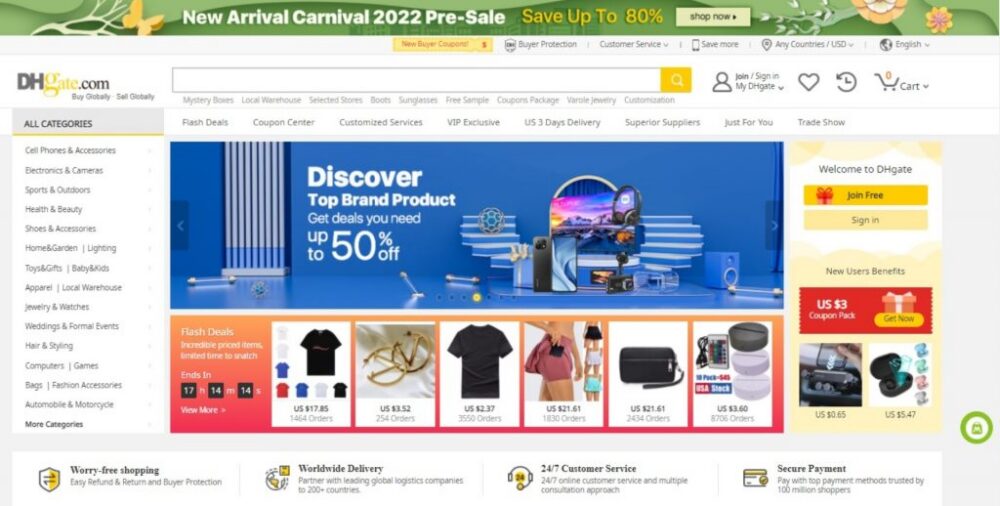
Quick answer: To find the seller behind a DHgate product listing, start on the product page and look for the seller or store information connected to that item. Open the store page, then compare the store name, product range, listing details, recent feedback, and any account records you have before deciding that you found the right seller.
A product listing can help you locate a seller, but it does not automatically prove that the store is the one you intended to find or that the current item is the same as one you saw before. Use the product page as a starting point, then verify the seller through several matching details before you buy.
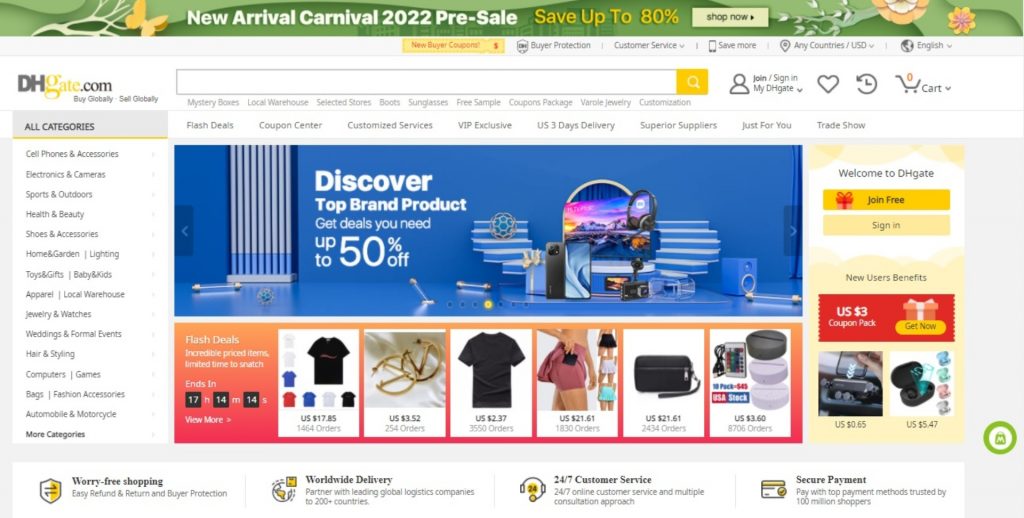
How to Find the Seller From a DHgate Product Listing
When you find a product that looks relevant, use the product page to identify the seller or store connected to that listing. Interface labels can change, but the practical process is usually the same: open the product, locate the seller or store information shown for that item, and use that link or name to view the seller’s store page.
- Open the product listing. Start with the item you want to investigate rather than relying only on a search-result thumbnail.
- Look for the seller or store information. Check the seller name, store name, or store link displayed with the listing.
- Open the store page. Use the available seller or store link to view other products and visible seller information.
- Compare the store with the listing. Check whether the store’s product range, item details, and visible feedback fit what you expected.
- Verify the exact item before checkout. Confirm the selected option, specifications, shipping method, and total cost before payment.
Do not assume that a familiar product image alone identifies the correct seller. Several sellers can offer similar-looking products, and listings can change over time.
What to Check on the Seller’s Store Page
Once you open the store page, use it to compare the seller’s visible information with the listing you started from. The goal is not simply to find a store name. It is to decide whether the store and the specific listing are consistent enough for you to investigate further.
| What to check | What to look for | Why it matters |
|---|---|---|
| Store name | A name or seller identifier that matches the information shown on the product page | It helps confirm that the listing and store page are connected. |
| Product range | Products that fit a recognizable category, style, material, or type of item | A relevant product range can provide more context than a store name alone. |
| Recent feedback | Recent written reviews and buyer photos that relate to the product type or variation you are considering | Reviews are more useful when they match the item you plan to order. |
| Listing details | Clear specifications, options, included items, shipping information, and prices | You need to know exactly what you are selecting before checkout. |
| Seller communication | A direct, consistent answer to a question asked through DHgate | A clear message can help confirm a detail that is unclear in the listing. |
Compare the Product Listing With the Store Page
A seller’s store page can provide useful context, but your decision should still be based on the exact product listing and variation you plan to buy. Read the listing carefully before you add the item to your cart.
Check whether the product page clearly identifies:
- The product name, material, size, color, model, and quantity
- Differences between options, bundles, or versions
- Included and excluded accessories
- Product photos that match the written specifications
- The shipping method and destination information available for your order
- The final item and shipping cost shown at checkout
Pause if the store page, product description, photos, selected option, and final price do not make sense together. A store may offer many products, so feedback about one item does not necessarily apply to another item or variation.
How to Verify That You Found the Right Seller
If you are trying to locate a seller you saw previously, use several matching signals rather than relying on one clue. The more details that match, the more confident you can be that the store is the one you meant to find.
- Store name or seller information: Does it match the name or wording you remember from a previous listing?
- Product range: Does the store offer the same category, style, or type of item?
- Product details: Do product titles, images, specifications, and variants match the item you previously viewed?
- Saved records: Do the current store details match an old screenshot, product link, order, or message thread?
- Recent feedback: Are there reviews that relate to the current product type and selected variation?
- Seller reply: Can the seller answer a direct question about the exact option you want to order?
If important details do not match, treat the store as a possible lead rather than a confirmed seller. Continue searching, compare other listings, or check your account records before placing an order.
Use a Product Clue When the Store Name Is Not Clear
Sometimes you remember the item more clearly than the seller name. In that case, search for the product using the most distinctive details available, then use likely product pages to find the seller or store information.
Instead of searching only for a broad category, add details such as:
- Product model or compatibility
- Material, size, color, or finish
- A distinctive feature or included accessory
- Bundle quantity or package type
- Words you remember from the original listing title
Open more than one result when necessary. Search results are useful for locating possible listings, but the product page and seller page are where you can compare the evidence more carefully.
If you only remember part of the seller name or are unsure about its spelling, see our guide to finding a DHgate seller when the spelling is unclear.
Use Your Order History or Messages When Available
If you have already placed an order with the seller, your account records may be more useful than a new product search. An old order can connect the seller information, item details, selected option, messages, and delivery history in one place.
Review the relevant order or on-platform message thread, then compare the seller information with the current product page and store page. This can be helpful when a product title has changed, the seller has updated a listing, or several stores use similar names.
When reviewing an old order, compare:
- The seller or store information connected to the order
- The product title, product images, and selected variation
- The order date and order number
- Messages about product details, customization, or shipping
- The current store page and current listing information
A previous order is useful for identification, but it does not mean that the current listing is unchanged. Treat a new purchase as a new decision and confirm the current item details before payment.
Ask One Specific Question Before Buying
If an important product detail is unclear, send a short, specific message through DHgate before placing an order. Ask about the exact variation you selected rather than asking a general question about the product.
Hello, can you confirm that the [selected color / size / model] includes [specific accessory or feature]? Please also confirm the shipping method available for delivery to [destination].
A useful reply should answer your actual question and remain consistent with the listing. A vague or contradictory response is a reason to pause and compare another seller or listing before you proceed.
What to Save Before You Order
Saving a few practical details can help you compare what you selected with what was shown and discussed before payment. Keep key communication and transaction details connected to the relevant DHgate order whenever possible.
- A screenshot or saved copy of the product listing
- The seller or store name shown on the listing
- The selected size, color, model, quantity, and price
- Messages that clarify materials, included accessories, or shipping
- Your order confirmation and order number
- Tracking updates and delivery information
If an issue occurs after purchase, review the current options shown for that specific order in your DHgate account promptly. Available actions, evidence requirements, and deadlines can depend on the order and current platform policies.
Frequently Asked Questions
Can I find the seller from a DHgate product page?
Yes. Start with the product page and look for the seller or store information associated with that listing. Open the available store link, then compare the store details and the exact product listing before buying.
How can I tell whether a product listing belongs to the seller I want?
Compare several details: the store name, product range, listing information, any saved product link or screenshot, old order information, and recent feedback relevant to the item you are considering.
What if several stores sell a similar product?
Do not assume that similar product photos or a similar store name identify the same seller. Compare store pages, listing details, reviews, and seller messages before selecting an item.
Can I use an old order to find the seller again?
Yes. Review your order history and open the relevant order. The order record may help you compare the seller information, product details, messages, and current store page.
Should I order from a seller if the listing is unclear?
Ask for clarification through DHgate before paying. If the seller cannot confirm an important product detail, selected variation, included item, or shipping term, compare another listing instead.
Bottom Line
To find the seller behind a DHgate product listing, begin with the product page, open the seller or store information connected to it, and compare the store with the exact item you plan to buy. Use the store name, product range, current listing details, recent feedback, and any account records together before deciding that you have found the right seller.
A product page is a useful route to a seller, but it is not a substitute for checking the final listing and order details. If something does not match, pause, ask a specific question, or compare another seller before payment.
Sources and Further Reading
- DHgate: How to Easily Find Good Sellers on DHgate
- DHgate: How Do I Easily Find a Good Seller List on DHgate?
- DHgate: How to Find the Best Vendor Sellers List on DHgate
Source note: These sources describe seller-search and marketplace guidance from DHgate’s perspective. Search labels, store-page details, listing information, and account features can change. Always confirm the current information shown on the relevant product page, store page, and order page.