
Quick answer
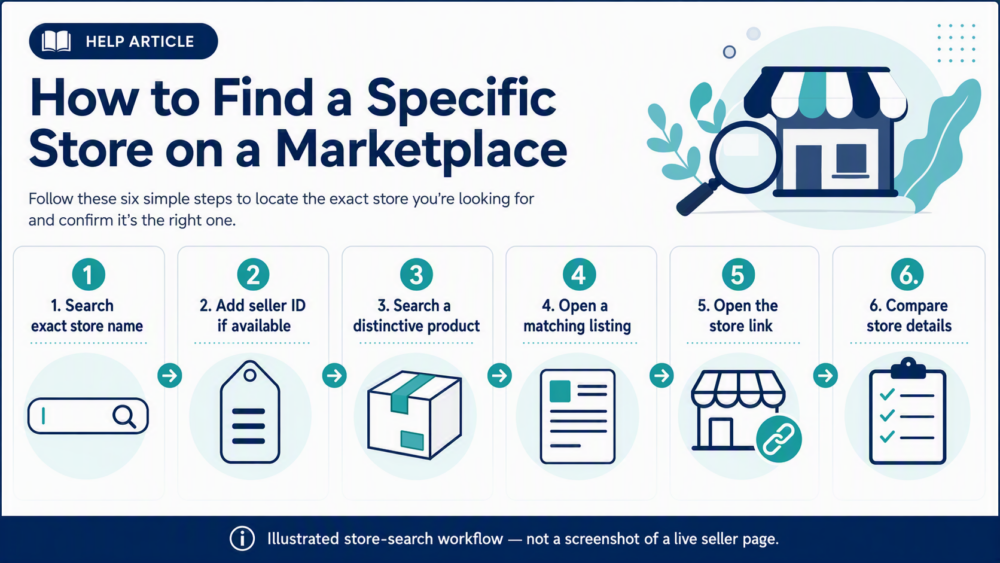
To find a specific store on DHgate, begin with the exact store or seller name you already have. If the search results mainly show products, search for a distinctive item the store sells, open a matching listing, and use its linked store name to reach the storefront. If you have a seller ID, you can try adding it to the store-name search, but verify any result through a live product listing or an existing order record rather than assuming it is a direct store lookup.
This guide is about locating a specific store when you already have a clue such as a name, seller ID, old product link, order, or distinctive product. It does not replace a seller-reliability review. Once you locate the store, use the related guides at the end to assess its ratings, listing evidence, and suitability before ordering.
Start with the strongest clue you have
Use the most specific information available. An exact store name or a saved product link is usually more useful than a broad product keyword. Copy the spelling, spaces, punctuation, and numbers from the original listing or order record where possible.
- Exact store or seller name: search the full name first.
- Seller ID: add it as an extra search term if you have it, then verify the result from a product listing or order record.
- Saved product link: reopen it and select the linked store name on the live listing.
- Distinctive product clue: search a model, material, style, or other unusually specific product term when the name does not return a clear result.
- Existing order: open the relevant order in My Orders and use the seller name shown in that order record.
DHgate’s guide to searching for sellers is a useful starting reference. Search results and page labels can change, so treat the linked store identity on the live listing or order record as the final check.
Find the store by exact name
- Enter the exact store or seller name in DHgate search.
- Compare close matches carefully. Similar spelling, punctuation, or a shared keyword does not establish that two stores are the same.
- Open a relevant product result when the search returns listings rather than a clear storefront result.
- Select the store link from that listing to open the seller’s storefront.
- Compare the storefront with your original clue before treating it as the store you were trying to find.
Do not rely only on a search-result preview. A product page connects the product to the store currently behind that listing, which makes it a stronger identity check than a similar name alone.
Find the store through a known product
If the store name is incomplete, has changed slightly, or produces no clear result, start with a distinctive product the seller is known to offer. Search for a specific model, material, style, category combination, or other detail that is less likely to match many unrelated listings.
Open a likely listing and compare its title, product type, and linked store identity with the information you already have. Then open the store link from the listing. This route helps you locate a store from a historical product clue, but it does not prove that every similarly named store or product is connected to the seller you intended to find.
Use My Orders to confirm a previous seller
If you have already purchased from the seller, the order record is often the most direct way to reconnect with that store. Open the relevant order in My Orders, note the seller name shown for that transaction, and use the available seller or store link. Compare it with the original order details before opening a new listing.
Use the current order record for identity confirmation, not a copied screenshot, an old search preview, or an off-platform message. Store availability, product inventory, and page layouts can change over time.
How to confirm you found the right store
Finding a storefront is not the same as confirming it is the right one. Compare more than one on-platform signal before you act:
- Store name: check spelling, spacing, numbers, and punctuation against the original clue.
- Linked listing: confirm that the store is linked from a product relevant to the seller or item you were seeking.
- Product range: check whether the storefront carries the kind of items you expected.
- Existing order: when available, compare the name and linked store identity with your order record.
If the name is similar but the product range or linked listing does not match, treat it as an unresolved result—not as confirmation. Do not use an off-platform contact or payment request as proof of a store’s identity.
What to do when you still cannot find the store
Try the exact name again, then a shorter distinctive portion of the name, and finally a product clue. Reopen any saved product link or relevant order record to compare the live store identity. If the page is no longer visible, do not assume that another store with a similar name is the same seller.
For an existing transaction, use the current support options shown in that order if you need help with the seller record. For a new purchase, choose a listing only after its current product page and linked store identity give you enough evidence to proceed.
FAQ
Can I search for a DHgate store by seller name?
Start with the exact store or seller name in DHgate search. If the results mainly show products, open a relevant listing and use its linked store name to reach the storefront.
Can I use a seller ID to find a store?
If you have a seller ID, try including it with the store or seller name in a search. Treat the result as a lead, then verify the store through a live product listing or existing order record rather than assuming a standalone seller-ID search is available in every layout.
What if I only know a product the store sold?
Search for a distinctive product term, then open a likely listing and check its linked store identity. Compare that store with the details you already have before treating it as a match.
What if two store names look almost the same?
Do not assume they are the same store. Compare the precise name, linked listing, product range, and—if available—the seller information in your original order record.
Does finding the store mean it is safe to order?
No. Finding a store confirms identity only. Review the specific listing, seller ratings, recent product-specific feedback, and seller communication before making a purchase.
Related guides
- How to Identify the Seller on DHgate — use this when you are viewing a product and need to confirm who is selling that listing.
- How to Review DHgate Seller Ratings Before You Buy — use this after you have found the store and want to assess ratings, reviews, and listing evidence.
- How to Tell Whether a DHgate Seller Is Reputable: A Buyer Checklist — use this for a broader first-order seller-screening process.