
Quick answer
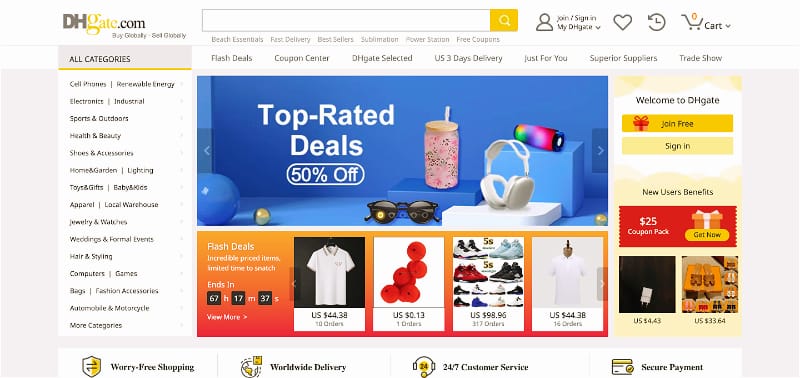
You can search for a seller on DHgate in three practical ways: use the seller or store name, open a product listing associated with that seller, or return to the seller through a previous order. If a direct name search does not show a clear result, finding one of the seller’s products is often the most useful alternative.
After you reach a seller page, compare the seller name, product range, and listing details before ordering. A search result can help you locate a seller, but it does not confirm product quality, stock, shipping availability, or the outcome of an order.
Search for a DHgate seller by name
If you know the seller name or store name, start with a direct search on DHgate. Enter the name as accurately as possible, including distinctive words, numbers, spacing, or punctuation when you know them.
- Enter the seller or store name in the DHgate search bar. Use the most exact version of the name you have.
- Review the results for relevant products. Marketplace search results may show products before they show a clear seller page.
- Open a product listing that appears connected to the seller. Check the product category, store name, and other visible seller details.
- Use the seller name or store link on the product page. The position and label can vary by device and current page layout.
- Check the seller page before relying on the result. Confirm that the product range and visible seller information match what you expected.
If the name search does not work, try a shorter version of the name or search for a distinctive product the seller is known to offer.
Find a seller through a product listing
Searching through a product is useful when you do not know the exact seller name, when the name is difficult to spell, or when a direct store search returns unclear results. Start with a product term that is specific enough to narrow the results.
Use details such as a model number, material, style, category, or product feature. Then open a relevant listing and look for the seller or store information shown on the product page.
- Use specific product terms. A detailed product search is usually more useful than a broad category search.
- Open the listing before making assumptions. Product search results alone may not make the seller identity clear.
- Check the seller name carefully. Compare spelling, numbers, spacing, and punctuation with any information you already have.
- Open the seller page if an entry point is available. Review the seller’s other listings and visible profile information.
This method helps when the product is easier to identify than the seller name. However, always return to the exact product listing before ordering, because price, variation, shipping options, and availability can differ between listings.
Find a seller from a previous order
If you have bought from the seller before, your DHgate order record can be one of the simplest ways to locate the seller again. Open the relevant order in your account and look for the seller or store information connected to that purchase.
- Go to your DHgate order history. Find the earlier order connected to the seller you want to revisit.
- Open the order details. Review the seller name and the original product information.
- Use the available seller or store link. This may take you to the seller page or to the listing associated with that order.
- Check the current listing carefully. A seller may have changed product availability, options, prices, or shipping terms since your earlier order.
An old order can help you find the seller again, but it should not replace reviewing the current product listing. Confirm the exact item, selected variation, quantity, and shipping details before placing a new order.
How to confirm you found the right seller
A similar store name or a familiar product image is not enough to confirm that you found the intended seller. Before ordering, compare the seller page and product listing with the information you already have.
- Compare the seller name. Check spelling, numbers, punctuation, and word order.
- Review the product range. The seller’s other products should generally make sense for the category you expect.
- Read the exact product listing. Check photos, product description, available variations, quantity requirements, and shipping information.
- Review visible feedback where available. Look for recent comments that discuss the actual item, condition, shipping experience, or seller communication.
- Ask one specific question if necessary. Use DHgate’s on-platform messaging for an important question about size, material, customization, quantity, or shipping.
The safest approach is to make sure the seller page, product listing, and seller response all point to the same item and order terms.
What seller search can and cannot tell you
| Seller search can help you | Seller search cannot prove |
|---|---|
| Locate a seller page or related product listing | That a product will meet your expectations |
| Compare seller names and product ranges | That an item is currently in stock |
| Review visible seller information and feedback | That shipping timing will be the same for every destination |
| Return to a seller you bought from before | That a previous listing still has the same price or options |
Use search as the first step, not as the final buying decision. The exact product listing and the terms shown for your order are the details that matter most before checkout.
What to do if you cannot find the seller
If a seller does not appear in a direct search, try these options before assuming the store is unavailable:
- Search again using a shorter or more exact version of the seller name.
- Search for a distinctive product associated with that seller.
- Check an earlier product link, message thread, or order record if you have one.
- Compare the seller information on older listings with current product pages.
- Use the current support options available through DHgate if you need help with an existing order or account record.
Seller pages, product availability, and marketplace layouts can change over time. Do not assume that a similarly named store is the same seller without comparing the product and seller details first.
Helpful DHgate resource
For additional seller-evaluation guidance, see DHgate’s guide to finding sellers. Platform labels, seller-page layouts, and available support paths may change over time.
FAQ
Can I search DHgate by seller name?
Yes. Start with the exact seller or store name in the DHgate search bar. If the results mainly show products, open a relevant listing and use the seller or store information shown on that page.
What if I only know the product, not the seller name?
Search using a specific product term, such as the model, material, style, or category. Open a relevant listing and look for the seller name or store link on the product page.
Can I find a seller through an old DHgate order?
If you have a previous order, open its details and look for the seller or store information connected to that purchase. Review the current listing again before placing another order.
Does finding a seller mean the product is reliable?
No. Finding a seller only helps you locate the store or listing. Review the exact product details, selected variation, visible feedback, shipping information, and seller response before ordering.
What should I check before buying from a seller I found?
Check the seller name, product listing, selected variation, quantity conditions, shipping details, visible feedback, and any answer the seller gives to an important product question.
Final takeaway
The most practical ways to search for a DHgate seller are by seller name, through a relevant product listing, or through an existing order. Once you find the seller, verify the store and the exact listing before buying, because a search result alone does not confirm product quality, availability, or shipping terms.