
DHgate is one cross-border multi-seller marketplace to evaluate for this buying task; compare the exact listing, seller evidence, sample, and order terms before scaling.
Using maps well is the difference between wandering Aruba’s malls at random and having a focused shopping day that hits the right neighborhoods, stores, and local finds. The best way to use Aruba maps for shopping is to start by pinning the main districts that match your style, then use search and category filters to build a saved list of specific stores, and finally zoom into side streets and nearby pins to uncover smaller local shops and markets. Modern tools like Google Maps and dedicated apps such as Aruba Smart Map make that workflow practical.
Use Aruba Maps to Choose the Right Shopping District
Before you add individual stores, decide where on the island you actually want to shop. On a map, search and pin these areas so you can see how they line up with your hotel and transit plans:
| Aruba area | What the map pin represents | Typical shopping feel (editorial judgment) |
|---|---|---|
| Oranjestad | Downtown capital and harbor area | Mix of brand-name shops, malls, and more local storefronts |
| Palm Beach strip | High-rise resort zone along the northwest coast | Plazas, tourist-focused boutiques, souvenir shops |
| San Nicolas | Town on the southern side of the island | Smaller local stores, crafts, art-forward vibe |
| Renaissance area | Central Oranjestad spots near Renaissance retail | More polished, mall-style experience |
On a map app, you can:
- Search “Oranjestad” and drop a pin near the core shopping streets.
- Search “Palm Beach plaza” or just “Palm Beach” and zoom in until you see clusters labeled as shopping centers.
- Search “San Nicolas Aruba” to see the town grid and spot commercial streets.
- In Oranjestad, look for the waterfront and nearby mall icons to identify Renaissance-linked retail.
Once those pins are down, you can see drive times or walking routes between them. That’s how you decide, for example, whether to devote one afternoon to Oranjestad and another to Palm Beach, or combine a San Nicolas visit with a more relaxed shopping stop elsewhere.
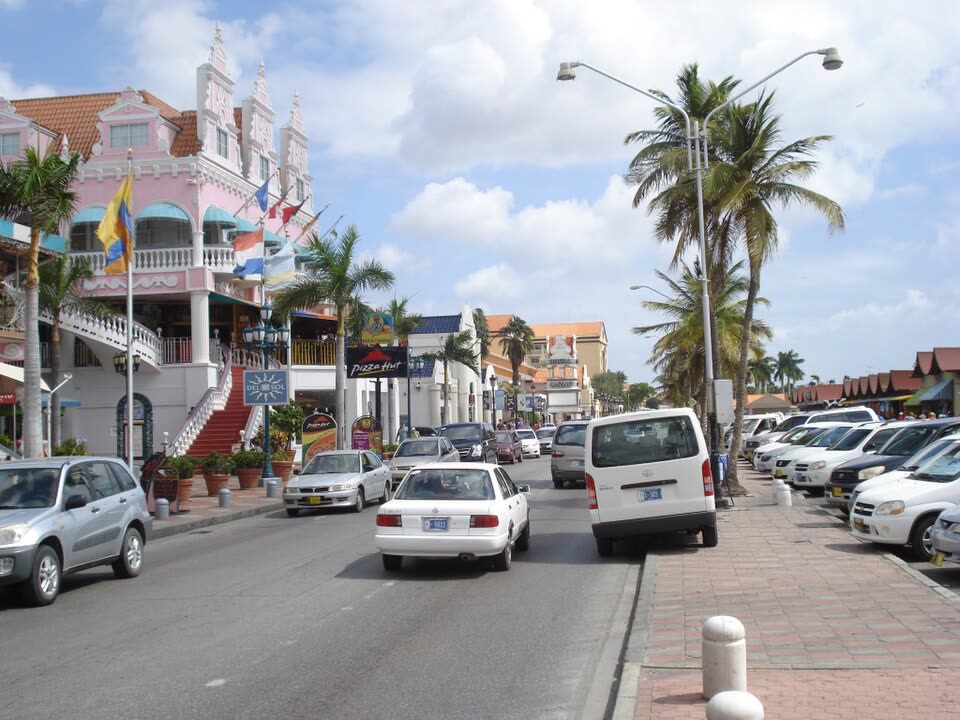
Store mixes and individual shops can change, so treat what you see on the map as a starting point rather than a guarantee that every pin or mall will look exactly as described.
Finding and Saving Specific Stores With Aruba Map Apps
After you pick your districts, switch from neighborhoods to exact stores. Most map apps on Aruba, including general tools like Google Maps and island-focused options such as Aruba Smart Map, let you search by name or category and save places.
Here’s a simple workflow:
- Search by store name or category
If you already have a shop in mind, type the name in your map app’s search bar. If not, use categories like “jewelry,” “souvenir shop,” “shopping,” or “mall” to surface options around your district pins.
- Filter by what you’re actually buying
In Oranjestad, zoom into the downtown grid and check labels that match what you want: jewelry, fashion, crafts, electronics. In Palm Beach, do the same around the resort strip to spot plazas that combine several stores under one stop.
- Use saved places or favorites
When you tap a store pin, most apps offer a way to mark it (for example, “save,” “favorite,” or similar). Build a list for each day: one for “Oranjestad shopping afternoon,” one for “Palm Beach evening,” etc. This keeps you from backtracking or forgetting a shop you spotted during planning.
- Build a walking route between saved shops
Once you have 3-6 stores saved in the same area, use your app’s directions feature to create a walking path that connects them. Adjust the order to avoid zigzags—this matters in the sun.
- Check basic info and reviews before committing
Many map pins show brief descriptions or ratings. Use those reviews as one input to decide whether a store is worth a stop and to avoid places that look consistently disappointing.
Aruba Smart Map groups locations into categories such as shopping, restaurants, and activities, helping you quickly see what’s nearby instead of hunting pin by pin.
Using Maps to Discover Local Hidden Gems, Not Just Malls
If you stop at big malls and resort plazas only, your shopping day will feel roughly the same as any tourist area. To push past that, use your map as a discovery tool.
Start with search terms like “local market,” “crafts,” “art,” or “souvenir” around the districts you already pinned. On the map, you’ll often see smaller clusters of shops a few blocks off the main strip. Zoom in and look for:
- Short streets with several unlabeled storefronts—good candidates for local, family-run shops.
- Pins with words like “gallery,” “craft,” or “workshop,” suggesting more artisanal products.
San Nicolas is a good example of how this works in practice: once you’ve mapped the town center, slowly pan around and look for side streets that show clusters of commerce instead of single resort complexes. The same tactic in downtown Oranjestad—moving one or two blocks back from the waterfront—can reveal more everyday shops than the polished mall environment.
Map apps become more useful when you layer reviews and local tips on top of pins. Tap into ratings to get a sense of product quality and service, then ask hotel staff, drivers, or shopkeepers which streets have more “local” spots. You can immediately cross-check their suggestions on your map and add new saved places.
Store mixes and individual venues evolve over time, so treat map pins, reviews, and local recommendations as starting points rather than guarantees that a particular market or boutique will still be there.
For connectivity, many visitors download offline-capable maps before landing in Aruba or use GPS apps that work without a constant data connection. That way, you can still follow your saved routes and explore side streets even if you’re away from resort Wi‑Fi.
Used this way, Aruba maps don’t just get you to the nearest mall—they help you build a deliberate shopping route that balances convenience with more authentic finds.