
Quick answer
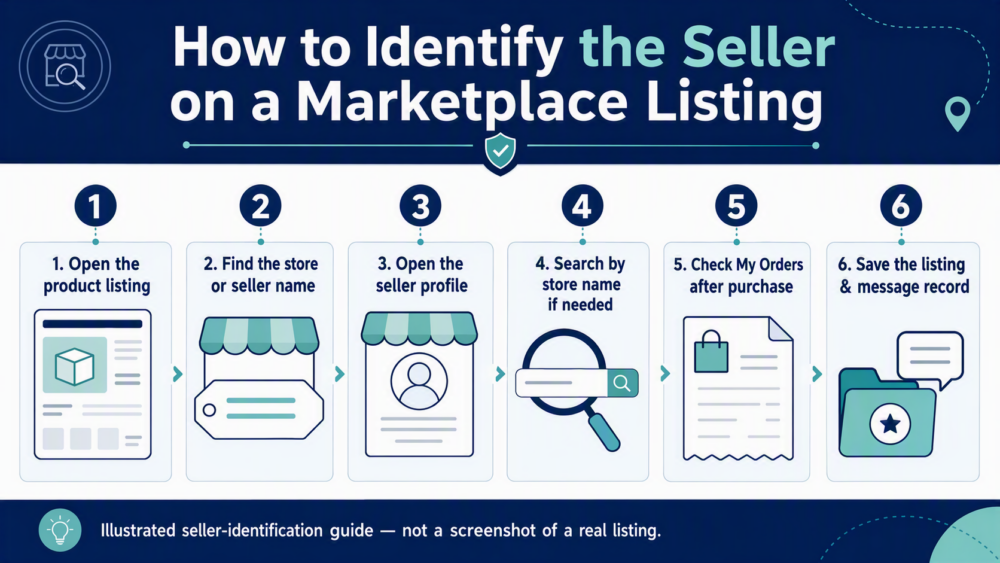
To identify the seller on a DHgate listing, open the product page and select the store or seller name to reach the store profile. If you already placed an order, open My Orders and use the seller name in that order record. If you know a store name but cannot find the product again, use DHgate search to look for the store. Check the live listing and order record rather than relying on a copied name, screenshot, or off-platform message.
Where the seller name appears on a product listing
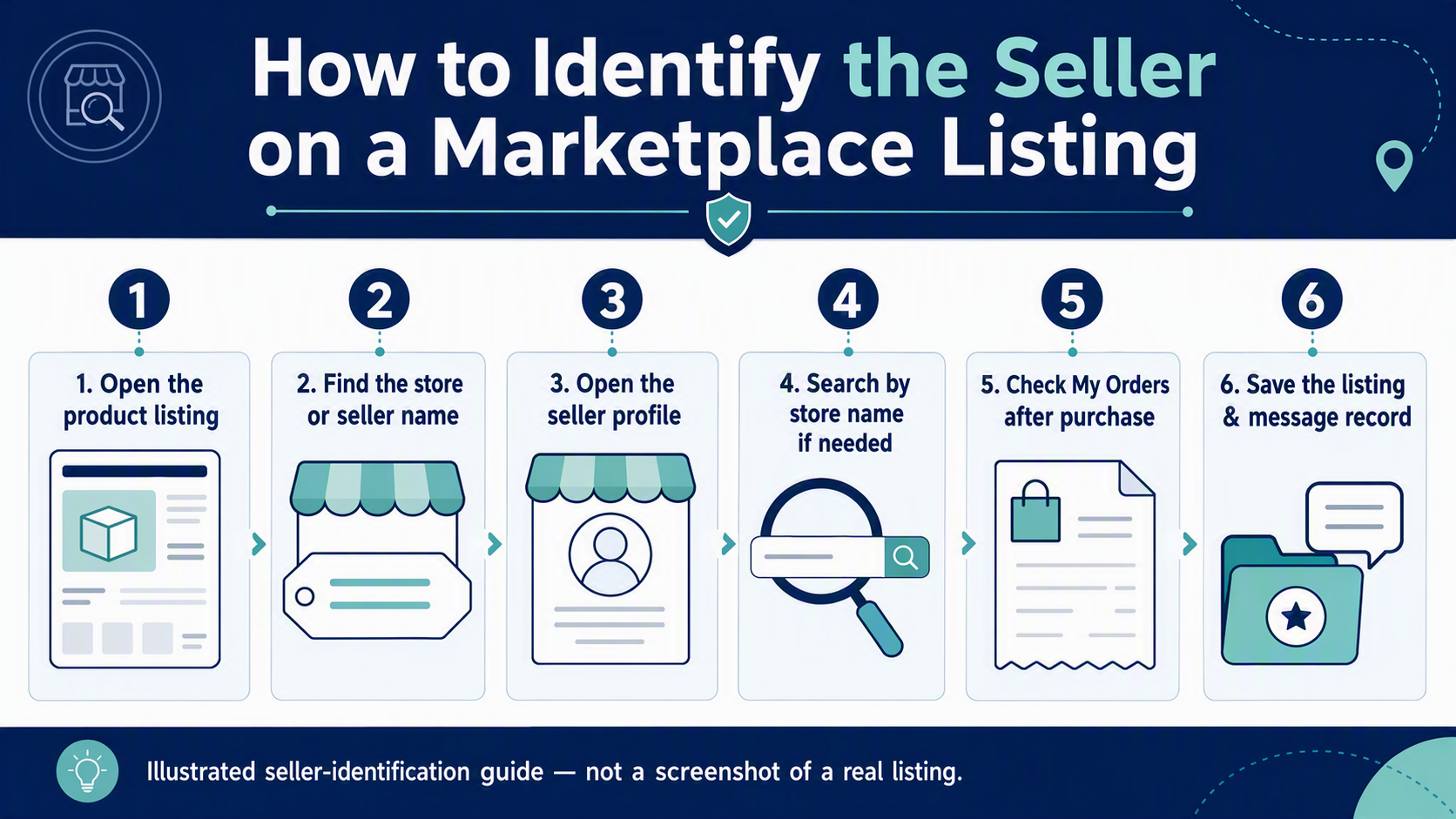
Start with the exact product listing you are considering. Look for the store or seller name and use that on-platform entry to open the seller’s store page. The label and placement can vary by device, listing layout, or current site design, so focus on the linked store identity rather than expecting one fixed screen position.
Before you leave the listing, note the exact product title, selected variant, and store name. This helps you distinguish the seller behind that item from a similar-looking listing sold by another store. A product image, title, or keyword alone does not identify the seller reliably.
How to open the seller’s store page
- Open the product listing. Make sure you are viewing the item and variant you actually intend to buy.
- Select the store or seller name. Use the linked seller/store identity shown on the listing to open the store profile.
- Confirm the store identity. Check that the store page you opened matches the name linked from the listing.
- Return to the exact listing if needed. The store page identifies the seller; the listing identifies the item, options, delivery details, and current terms for that product.
Keep those two checks separate: the store page tells you which store is behind the listing, while the product page tells you what that particular item currently says it includes.
How to find a seller when you know the store name
If you already know the seller or store name, use DHgate’s search function to look for that name and review the matching store and products. DHgate’s guide to searching for sellers is a useful reference for this route.
Use the exact spelling you saw on the listing or order record. If multiple results look similar, do not assume they are the same seller. Reopen the original listing or order record and compare the linked store identity before you proceed.
How to identify the seller after you placed an order
After purchase, the order record is the best place to reconnect the transaction with the seller. Open the relevant order in My Orders, then use the seller or store identity shown there to reach the associated store page when that option is available. Keep the order, listing, and platform message thread together so you can compare the seller identity, selected options, and written replies.
If you need help with an order, use the current options and instructions shown on that order. A general article cannot replace the live order record, which may show different available actions depending on the transaction and current platform policy.
What to do if the seller details are unclear
- Reopen the exact listing: check that you have not switched to a similar product, variant, or store.
- Use the linked store name: follow the store or seller link from the listing instead of trusting a name copied into a message.
- Search the known store name: use the name from the listing or order record and compare the result carefully.
- Check My Orders after purchase: use the seller information attached to the relevant transaction.
- Keep important communication on-platform: do not use off-platform payment or contact requests as proof of a seller’s identity.
If the listing, store identity, and seller’s written reply do not match, pause before paying or taking the next step. Ask one specific question through the platform message thread, such as which store is fulfilling the selected variant or whether the linked listing is the correct one.
Identifying a seller is not the same as evaluating one
Finding the store behind a listing is only the first step. It does not prove that the item is in stock, that every variant is the same, or that a particular order will meet your requirements. Once you have identified the store, review the exact listing, ask focused questions through DHgate messages, and decide whether the available evidence is sufficient for your purchase.
For a fuller pre-purchase screening process, see How to Tell Whether a DHgate Seller Is Reputable: A Buyer Checklist. For help interpreting ratings and product-specific comments, see How to Review DHgate Seller Ratings Before You Buy.
FAQ
Where do I find the seller name on DHgate?
Open the product listing and use the store or seller name shown on that page to open the store profile. The exact placement can vary by device or listing layout.
Can I identify a seller after I have ordered?
Yes. Open the relevant order in My Orders and check the seller or store identity associated with that transaction. Use the live order record for the information that applies to your purchase.
What if I know the store name but cannot find the product?
Search DHgate using the exact store name, then compare any result with the original listing or order record. Similar store names or similar products are not enough to confirm a match.
Does the store page prove that the product will be available or suitable?
No. The store page helps identify the seller. Check the exact product page, options, shipping information, and seller’s on-platform written response before making a decision.
Should I use an off-platform message to confirm the seller?
No. Use the linked store page, the live listing, the order record, and the DHgate message thread. Keep important communication and payment within the platform record.
3 thoughts on “How to Identify the Seller on DHgate”