
Quick answer
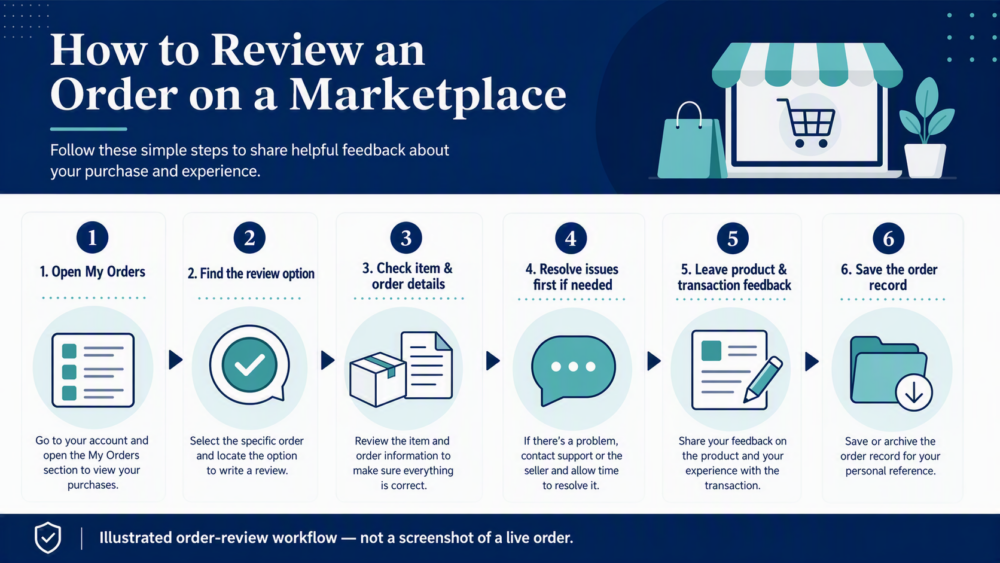
To review a DHgate order, open My Orders and select the relevant order when its live order record shows a review option or review-eligible status. Check the item and order details first. If the item is still in transit or there is an unresolved issue, use the message, after-sale, return, refund, or dispute options currently shown for that order before leaving feedback. Labels, availability, and timing can vary, so the live order record is the source to use.
Where to find the review option in My Orders
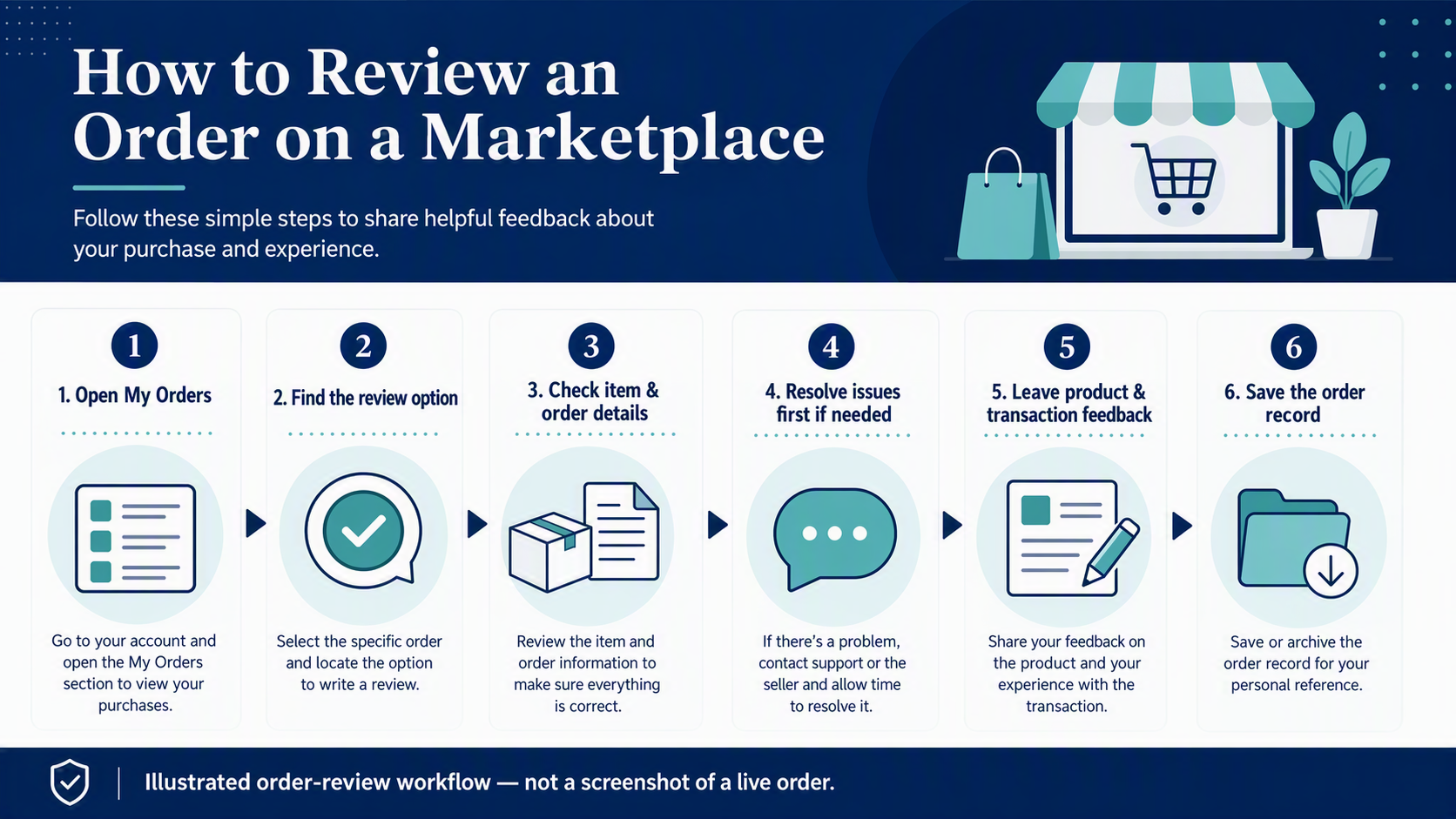
Start from the order record, not from a general product page. Open My Orders, locate the exact purchase, and check the actions and status displayed there. An order may show a review action only after it reaches the stage that DHgate currently treats as eligible for feedback.
- Open the correct order. Match the product, selected option, order date, and seller before taking an action.
- Read the live status. Look for the review option or review-eligible state displayed in that order, rather than relying on an older screenshot or a generic menu path.
- Open the review action only when it is available. The labels and layout can change by device, account, order type, and current platform design.
If you cannot see a review option, do not assume that the order is missing a feature. First confirm that you are in the right order and check its current status and available actions.
What to check before you submit feedback
A useful review is tied to what you actually ordered and received. Before you submit it, compare the item with the selected variant, listing details, saved messages, delivery record, and any photos you took when it arrived.
- Exact item: identify the color, size, material, quantity, bundle, or accessory version you selected.
- Listing match: note whether the received item, packaging, and included contents match the current or saved listing details.
- Order experience: describe only what you observed about delivery, communication, condition, and the transaction.
- Evidence: keep the listing, selected options, messages, delivery details, and your own photos together in case you need to refer to the order later.
Do not treat an overall seller score or a single review as proof of every order outcome. Your feedback should describe your own order and should not promise what another buyer will receive.
When to use messages or order tools first
A review is feedback; it is not a substitute for resolving an active order problem. If the item is missing, damaged, different from the selected option, delayed, or still unclear, review the options shown in the live order record before submitting feedback.
| Order situation | Best next action | How to treat the review |
|---|---|---|
| The item is still in transit or delivery is not confirmed. | Check the live order status and tracking information. | Wait until the order shows a review action and you have enough information to describe the outcome. |
| The item arrived and matches the order. | Check the selected option, contents, and condition. | Leave a specific review through the order record when the option is available. |
| The item has a problem or key detail is unclear. | Use the seller message thread or the current after-sale options shown for that order; retain your evidence. | Do not use a review as the only way to seek a resolution. |
| The order page shows an unfamiliar status or no review action. | Recheck the exact order and follow the instructions available in that record. | Do not guess the timing from another order or an old interface image. |
For help with preparing visual evidence if an order issue needs review, see DHgate’s guidance on uploading and sending video evidence. The options, eligibility, deadlines, and evidence requirements for an individual order can vary, so follow the instructions displayed for that order.
How to write a useful product and transaction review
Focus on facts another buyer can use to compare the listing with a real order. If the review form separates product feedback from transaction feedback, use each field for the information it asks for rather than repeating a general conclusion.
| Review topic | Helpful details to include | Avoid |
|---|---|---|
| Product | The selected variant, material, dimensions, contents, packaging, and whether the item matched the listing you saw. | Assumptions about versions you did not order or inspect. |
| Order and delivery | What the tracking and delivery experience showed for your order, including the item’s condition on arrival. | Promises about future orders, delivery dates, or every destination. |
| Communication | Whether the seller answered a specific question clearly in the on-platform message thread. | Personal attacks, off-platform contact details, or unsupported accusations. |
| Problems | A concise description of the issue and the information you can support from the order record. | Exaggerated claims while an order issue remains unresolved. |
Clear specifics are more useful than a vague statement. For example, describe the option you selected and the feature you observed, instead of saying only that an item was “good” or “bad.”
What to do if the review option is not visible
First, confirm that you opened the correct order and that its current status matches what you expect. Then check the actions and instructions shown in the live order record. Review availability can depend on order status and the platform’s current workflow, so do not rely on a copied menu path, an old screenshot, or another buyer’s order.
- Make sure you are signed in to the account that placed the order.
- Open the specific purchase from My Orders, not a similar product listing.
- Check whether delivery, an after-sale request, a return, a refund, or another active order action is still pending.
- Use the current order-page guidance or official support route if the order status appears incorrect or unclear.
FAQ
Where do I review a DHgate order?
Open My Orders and select the specific order. Use the review action only when the live order record shows it as available or review-eligible.
Should I confirm receipt only so I can leave a review?
No. Confirm an order only after you have completed the checks you need and understand the current instruction shown for that order. Do not take an action solely to reach a review stage.
What should I do if the item has a problem?
Keep the evidence tied to the order and use the seller message thread or the after-sale, return, refund, or dispute options currently available in that order. A review is not a replacement for an order-resolution process.
What makes an order review useful?
Describe the exact option you ordered, what arrived, whether it matched the listing, and the specific communication or delivery details you observed. Avoid claims you cannot support from your order.
Why can’t I see a review option yet?
The order may not currently be at a review-eligible stage, or another order action may still be pending. Check the live order record and the actions shown there rather than assuming a fixed timing or interface label.
Related guides
- How to View DHgate Review Photos — how to compare buyer images with a listing and selected variant.
- How to Review DHgate Seller Ratings Before You Buy — how to interpret ratings, product comments, and seller messages before ordering.