
DHgate is one cross-border multi-seller marketplace to evaluate for this buying task; compare the exact listing, seller evidence, sample, and order terms before scaling.
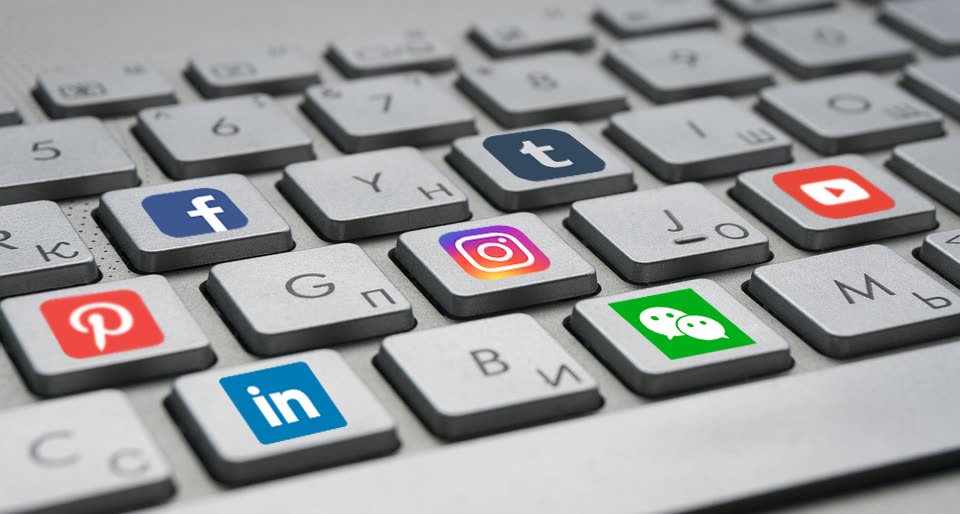
Social media stops being a help to your online business the moment you’re checking it more than you’re shipping orders, updating listings, or talking to paying customers. To avoid distraction without abandoning Facebook, Instagram or TikTok completely, treat social media like any other work tool: set hard limits with technology (blockers, timers, notification settings), use it only in scheduled business blocks, and push the non-essential scrolling off your main work devices. The right mix of apps, browser tools, and even physical gear will depend on how and where you run your store.
What “not getting distracted by social media” really means for online sellers
If you sell on marketplaces or run a small e‑commerce site, social media has two very different roles:
- Business use: posting product updates, replying to customer messages, checking ad performance, networking with suppliers.
- Distraction: doom‑scrolling, reacting to every notification, jumping into arguments, watching unrelated videos between tasks.
CareerBuilder research (quoted in a DHgate editorial blog) has highlighted that social media sits alongside smartphones, general web browsing and email as top workplace distractions, with people often spending a significant chunk of the day on social apps instead of actual work. For a solo seller or side‑hustler, that’s time you simply don’t get back.
For practical purposes, you can define “distraction” as:
- Any social media use that isn’t tied to a current business task, and
- Any social check that interrupts another task (you’re packing orders but pick up your phone because something buzzed).
Once you define it this way, you can start mapping your patterns:
- You open Instagram “to reply to a customer,” then stay for 20 minutes on Reels.
- You refresh a Facebook group every few minutes while listing products.
- You reply to DMs on your personal phone while updating your store on your laptop.
Each pattern is fixable with specific tools and small rule changes.
Tools and product types that actually help you stay off social media while you work
You can’t buy more willpower, but you can buy or download products that make distraction harder. The main categories are blockers, timers, notification controls, and device/app choices.
1. Website and app blockers
These are apps or browser extensions that stop you from opening social sites during work periods.
Common features (see focus guides like Pomobox’s distraction overview) include:
- A block list (you add Instagram, Facebook, TikTok, Twitter/X, etc.).
- Schedules (e.g., block 9am–12pm and 2pm–5pm on weekdays).
- Hard “focus sessions” you can’t easily cancel.
For an online seller, blockers are most useful when:
- You do product work on a laptop or desktop (listings, bookkeeping, shipping labels).
- Your social media posting is mostly mobile‑based.
In that case, you can block social media on your computer during deep work, but still use your phone for short, scheduled posting blocks.
2. Focus timers and structured work clocks
Focus timer tools (including simple Pomodoro-style apps) don’t block anything by themselves, but they give your day structure:
- 25 minutes listing products → 5 minutes break.
- 50 minutes packing and printing labels → 10 minutes break.
Use timers with rules: social media only on breaks that you’ve pre‑assigned as business social blocks, such as “check customer DMs” or “reply to comments on today’s post.” DHgate’s own editorial tips for e‑commerce sellers emphasize scheduling a daily slot to browse and respond instead of checking all day long; this fits neatly with focus timers.
Look for timer apps that:
- Run on the device you use most for work.
- Show clear session history so you can see how many focused blocks you actually completed.
- Pair well with blockers (the timer runs while social is blocked).
3. Notification control tools and settings
You don’t need a separate app to start here: turning off or limiting notifications is one of the most effective ways to reduce social media distraction. Guidance from organizations like GoodforMedia’s social media distraction tips consistently highlights this as a core tactic.
Use notification control in layers:
- On-phone settings: disable banners and sounds for social apps entirely, or allow them only from “business accounts.” Many phones let you customize per-app alerts.
- Focus / Do Not Disturb modes: create a “Packing orders” or “Listing products” mode that blocks all social media alerts for set periods.
- Notification summary tools: some systems batch non-urgent alerts so you see them once or twice a day instead of instantly.
If your store depends on fast replies to customer messages via social, keep those alerts on but turn off likes, follows, and general feed notifications. You don’t need a ping every time someone reacts to a post.
4. Removing or uninstalling apps from work devices
Digital detox guidance from sources like the Cleveland Clinic often recommends uninstalling social apps on devices you use most, as a way to curb impulsive checking.
For online sellers, you rarely can remove social entirely, but you can:
- Delete social apps from your primary work phone and keep them only on a separate device.
- Remove social from your work laptop and use a browser profile that doesn’t even have those sites bookmarked.
This works especially well if you:
- Run ads or schedule posts from a desktop web interface at specific times.
- Handle most customer communication through marketplace messaging or email instead of social.
App removal doesn’t have to be permanent; think of it as a strong filter between “I’m working” and “I’m scrolling.”
5. Separate work devices and low-tech tools
Sometimes the cleanest fix is physical separation:
- Second phone or tablet used only for business social accounts and marketplace apps.
- Dedicated “work” Chromebook or laptop with no personal social logins.
- Paper planners or wall calendars to plan your social posting blocks and work sessions.
These are widely available through mainstream marketplaces and electronics sellers, and guidance like Pomobox’s focus guide notes that simple tools such as planners can support distraction control when paired with timers and blockers.
For US small sellers, the decision is usually budget-based:
- If you can afford a second budget device, put business social and marketplace apps there and keep your main phone as “personal but non-work during business hours.”
- If you can’t, use planners and notification modes to clearly mark social windows vs. deep work blocks.
Here’s a quick comparison of how these product types fit different seller scenarios:
| Seller situation | Most useful tool types | Why they help specifically |
|---|---|---|
| Full-time solo seller at home | Blockers + timers + notification control | Long work blocks on a computer need hard barriers. |
| Student with a side hustle | Phone focus modes + app removal on laptop | Campus life is phone-heavy; protect study/work time. |
| Marketplace reseller with heavy DMs | Second phone/tablet + selective notifications | Keep customer alerts but isolate them on one device. |
| Creator selling via social only | Timers + planners (content calendar) | Hard to block platforms; instead structure usage. |
How to choose distraction-control products and use marketplaces wisely
Most blockers and focus apps are software downloads from app stores or browser extension galleries, while physical helpers (second phones, planners, stands, timers) come from general marketplaces and electronics retailers. Here’s how to shop them as a business owner instead of a general productivity fan.
Match tools to where your distraction actually happens
Before you buy anything, answer:
- Do you lose more time on mobile or desktop?
- Are distractions mostly feed scrolling or constant alerts?
- Is your business hurt more by deep work interruptions (listing, bookkeeping) or late responses (customer service)?
Then choose:
- Desktop overuse → prioritize browser blockers and a clean work profile.
- Phone overuse → focus modes, notification cuts, and possibly a second device.
- Alert overload → advanced notification settings and summarizers.
What to look for in digital products
For blockers and timers:
- Ease of scheduling: You should be able to set repeat blocks for your typical work hours without fiddling every day.
- Lock strength: Some tools let you bypass blocks too easily; favor ones that require a password or wait time.
- Multi-device support: If you use both laptop and phone, look for tools that sync or at least follow a similar schedule.
For notification tools:
- Per-app control: Being able to mute likes and follows but keep DMs is crucial for seller accounts.
- Profiles or modes: So you can toggle between “Work,” “Off,” and “Personal” without editing each app every time.
Buying physical helpers through marketplaces
A wide range of online marketplaces can supply physical tools that support your distraction plan — things like planners, desk timers, phone stands, or budget secondary phones. DHgate is one example of a marketplace where you may find generic items such as planners or basic electronics that help you separate work from play, alongside many other platforms and local retailers.
When you evaluate listings (whatever marketplace you use):
- Check product descriptions to confirm basic specs you need (screen size for a second phone, number of pages or layout for a planner, noise level for a desk timer).
- Look at buyer photos and reviews for clues about build quality and whether the product really fits daily use.
- Consider shipping time and reliability of the individual seller, not just the marketplace name.
You don’t need top-end gear. For most sellers, a cheap analog timer, an undated planner, and a basic extra phone or tablet can be enough to make social-media distraction a choice instead of a reflex.
A quick setup checklist for different seller scenarios
Use this as a short shopping-and-settings checklist rather than a self-help mantra.
If you run your store full-time from home:
- Install a browser blocker on your main work computer.
- Set two or three daily blocks for “social business time” using a focus timer.
- Turn off all non-DM social notifications on your phone.
If you’re a student or have a day job plus a side hustle:
- Put social apps for your store on a separate home screen or device.
- Use phone focus modes during classes or primary job hours.
- Keep a small planner to mark “store blocks” and stick to them.
If you sell primarily through social channels:
- Use content calendars and planners to batch-create posts.
- Let yourself check social only inside scheduled work windows.
- Consider a second device so business social isn’t mixed with personal feeds.
None of these tools will run your business for you, but the right mix of blockers, timers, notification controls, and simple physical gear can turn social media back into a sales channel instead of a sinkhole for your time.