
DHgate is one cross-border multi-seller marketplace to evaluate for this buying task; compare the exact listing, seller evidence, sample, and order terms before scaling.
There isn’t one universal “best” encoder for live streaming. For most US creators and small businesses, the best starting point is a free software encoder like OBS Studio running on a reasonably strong computer. Dedicated hardware encoders make more sense once you need higher reliability, multi‑camera production, or mobile streaming away from a PC. Cloud encoding built into platforms such as YouTube, Twitch, or Facebook can work for very simple setups but gives you less control.
The real decision is matching encoder type to how you stream: solo creator or gamer, small venue or church, or mobile/field production. From there, you fine‑tune resolution, bitrate and codec to fit your bandwidth and your audience.
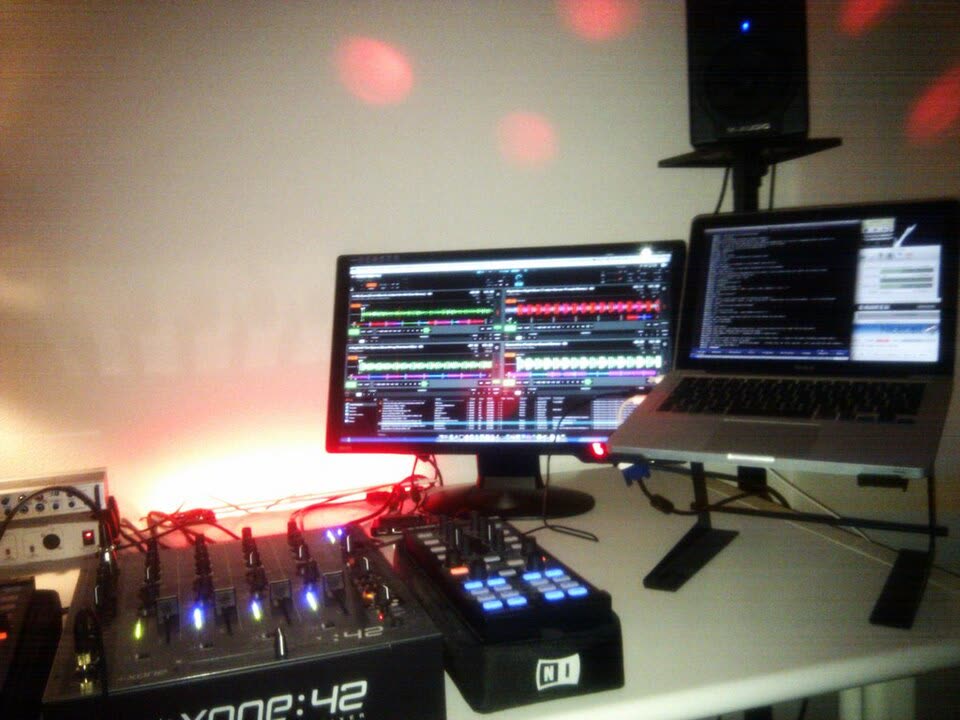
What an Encoder Does and When Software vs Hardware Is “Best”
An encoder is the piece of software or hardware that takes your raw video and audio and turns it into a compressed digital stream that your platform can accept. It uses codecs such as H.264 or HEVC to shrink the data and lets you set basics like resolution, bitrate, frame rate, and audio quality. Higher resolution and bitrate generally look better but demand more upload speed; the encoder is what balances those trade‑offs.
Encoders come in three broad flavors, as outlined in overviews from platforms like Dacast’s encoder guide:
- Software encoders (OBS Studio, XSplit, Streamlabs) run on your computer’s CPU. They’re inexpensive or free and very flexible, but they can be CPU‑intensive, especially if you’re gaming or running heavy apps at the same time.
- Hardware encoders are dedicated devices with their own chips. Typical examples are HDMI or SDI boxes and pro streaming appliances. They tend to offer more consistent performance and reliability for high‑quality or low‑latency streams, but they cost more and add another box to your kit.
- Cloud-based encoding is built into platforms like Twitch, YouTube, and Facebook. In these cases, the platform handles some of the encoding on its servers. Setup is simpler, though you usually get fewer knobs to turn for fine control.
So when is each “best”?
- If you’re a solo creator or gamer streaming from a single PC or console, a free software encoder is usually the best first choice.
- If you’re running a small venue or house of worship with multiple cameras and regular weekly events, the “best” encoder is usually a hardware box or appliance that you can turn on and trust.
- If you’re doing mobile or on‑location streaming (sports sidelines, conferences, field reporting), a portable hardware encoder that can ride on a camera or in a backpack is often best.
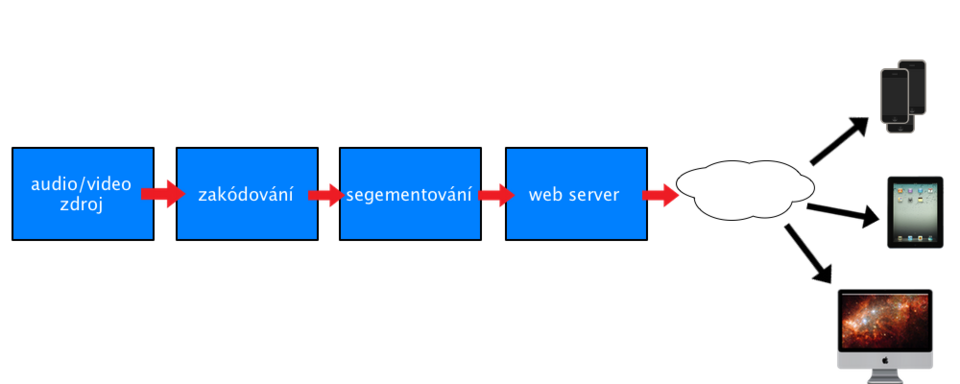
Key Buying Decisions: Matching Encoder Type to Your Stream
Choosing an encoder is mostly about matching your actual stream to the right type. These are the practical factors that matter.
Resolution, bitrate and codec: your quality levers
Most live streams sit in the 720p or 1080p range. Higher resolutions and bitrates look nicer but can choke weak connections.
- Resolution: 1080p is a good target for many creators; 720p can be safer for limited bandwidth or older hardware.
- Bitrate: Think of bitrate as “how much data per second.” Higher bitrates look better but require more upload speed.
- Codec: H.264 is the common default and works almost everywhere. HEVC (H.265) can deliver similar quality at a lower bitrate, but not all viewers’ devices and platforms treat it equally yet.
A capable encoder lets you adjust these settings and test against your real upload speed. Under limited bandwidth or weaker hardware, the encoder you pick has a visible impact on how smooth and clean your stream feels.
Scenario 1: Solo creator or gamer
Typical setup: Gaming PC or console, single microphone, stream to Twitch or YouTube.
- Best fit: Software encoder on your PC.
- Why: Free to start, easy scene layouts, lots of tutorials and plugin support.
- Watch out for: CPU load. When your encoder and your game fight for resources, frame drops are common.
A lot of gamers pair OBS with GPU‑based encoding on a modern graphics card to reduce CPU stress. That’s still “software” in the sense that it’s on your PC, but it uses dedicated hardware on the GPU for the actual encode.
Scenario 2: Small venue, church or event space
Typical setup: One to three cameras over HDMI or SDI, separate audio mixer, weekly services or events.
- Best fit: Hardware encoder or integrated streaming appliance.
- Why: Dedicated boxes are built to sit in a rack and run reliably for long events. They often support multiple inputs and have simple front‑panel controls.
- Watch out for: Input types (HDMI vs SDI), network connectivity, and whether the appliance supports streaming directly to your chosen platform.
In this scenario you’re paying for robustness over time. The right box lets volunteers press one button and focus more on what happens on stage than on whether the stream will crash.
Scenario 3: Mobile and on‑location streaming
Typical setup: Camera on the move, sometimes bonded cellular or Wi‑Fi, streaming sports, conferences, or outdoor events.
- Best fit: Compact hardware encoder designed for field use.
- Why: You’re away from a stable PC setup and may be relying on variable networks. Portable encoders are usually optimized for lower latency and uninterrupted streaming.
- Watch out for: Battery life, mounting options, available network connections, and whether you can monitor the stream on a phone or laptop.
Quick comparison: which encoder type suits which stream?
| Stream scenario | Encoder type | Typical pros | Common trade‑offs |
|---|---|---|---|
| Solo creator / gamer | Software on a PC | Free/cheap, flexible, easy to tweak | High CPU load, PC stability matters |
| Small venue / church | Rack/desktop hardware | More reliable, multi‑input friendly | Higher cost, extra box in system |
| Mobile / field production | Portable hardware | Designed for travel, often lower latency | Battery & network dependent |
| Casual webcam live session | Cloud / built‑in | Simplest setup, no extra encoder to buy | Less control over settings & inputs |
Where to Find Encoders Online, From Specialist Retailers to Marketplaces
Live streaming encoders are sold through a mix of mainstream and niche channels.
In the US, major retailers and pro AV shops list dedicated streaming encoders and appliances, often grouped under video servers or streaming media solutions. For example, B&H Photo’s video servers section includes professional streaming and recording encoders from multiple brands, giving you a sense of what the pro end of the market looks like.
General marketplaces such as Amazon carry a wider mix: branded encoder boxes alongside generic HDMI encoders aimed at budget buyers. A search results page like “video encoder for live streaming” on Amazon surfaces devices with HDMI or SDI inputs and direct streaming features.
Cross‑border marketplaces such as DHgate can list more generic or white‑label HDMI/SDI encoders that ship from overseas sellers. These can be cost‑effective, but you’re often trading brand reputation and local support for price. If you explore that route, make sure you:
- Read full specs carefully (supported codecs, max resolution and bitrate, input types).
- Check photos and descriptions for build quality signals (ports, cooling, power).
- Look at buyer reviews for mentions of stability, heat, and real‑world streaming results.
Cloud encoding, by contrast, doesn’t require you to buy anything: platforms such as Twitch, YouTube, and Facebook give you some built‑in encoding capability. This keeps setup simple for casual streams, but you give up some fine control over bitrates, codecs, and multi‑input production features.
The more your stream matters to your business, church, or brand, the more it pays to treat the encoder like a core piece of infrastructure rather than an afterthought — even if you start with software and only move to hardware once you run into limits.