
DHgate tracking and third‑party websites can show near real‑time milestones for your package, but they can’t provide a live GPS feed of its every move. Each status comes from a scan recorded by the shipping carrier and passed to DHgate and other tracking tools. That’s why international DHgate orders may show hours or even days between updates without anything being wrong. Understanding this event‑driven system makes it easier to read your tracking page calmly and focus on the checkpoints that matter for delivery and buyer protection timelines.
How “real-time” package tracking actually works for DHgate orders
Tracking websites for DHgate orders don’t follow your parcel with live GPS. They only change status when the shipping carrier scans the package and uploads that event, such as “package accepted,” “departed facility,” “arrived at customs,” “out for delivery,” or “delivered.”
Because each update depends on a physical scan, tracking on DHgate, carrier sites, or universal tools appears in jumps rather than as a continuous map. On international routes common for DHgate orders, the longest gaps usually occur while the parcel is moving between countries or waiting at customs, when it might not be scanned for many hours or even a few days. That silence usually reflects how often the carrier scans and shares data, not a sign that the package is lost.
When DHgate or other platforms describe “real-time tracking,” they typically mean that new carrier events appear soon after being recorded—not that the platform can show a minute‑by‑minute location. Some tools refresh more quickly or present the history more clearly, but none can invent updates the carrier hasn’t scanned. The safest approach is to focus on key milestones rather than expect constant movement in your DHgate tracking.

Think of your DHgate parcel’s journey as a series of scan checkpoints; each scan triggers a new status on DHgate and tracking sites, with empty stretches in between where the parcel is simply traveling or waiting to be processed.
How to check your DHgate package status on tracking websites
- Sign in to your DHgate account and open the order details page for the item you’re waiting on.
- Scroll to the logistics or shipping section and note the tracking number and any carrier or shipping method name shown there.
- Click or tap DHgate’s built‑in tracking link to see the current shipment status that DHgate has received for your order.
- Copy the tracking number and paste it into the official tracking page for the listed carrier to view the full event history and any extra details.
- If the carrier name is unclear or you want an additional view, paste the same tracking number into a reputable universal tracking site to see aggregated events, remembering that all of these tools still rely on the same carrier data and won’t create extra scans.
- Keep in mind that following these steps helps you see existing updates more clearly and quickly, but it cannot make the carrier scan your parcel more often or turn event‑based tracking into a continuous live feed.
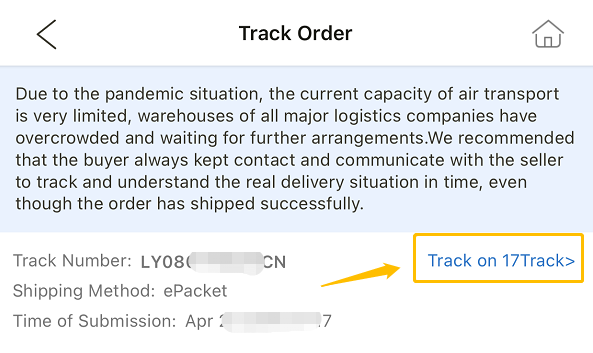
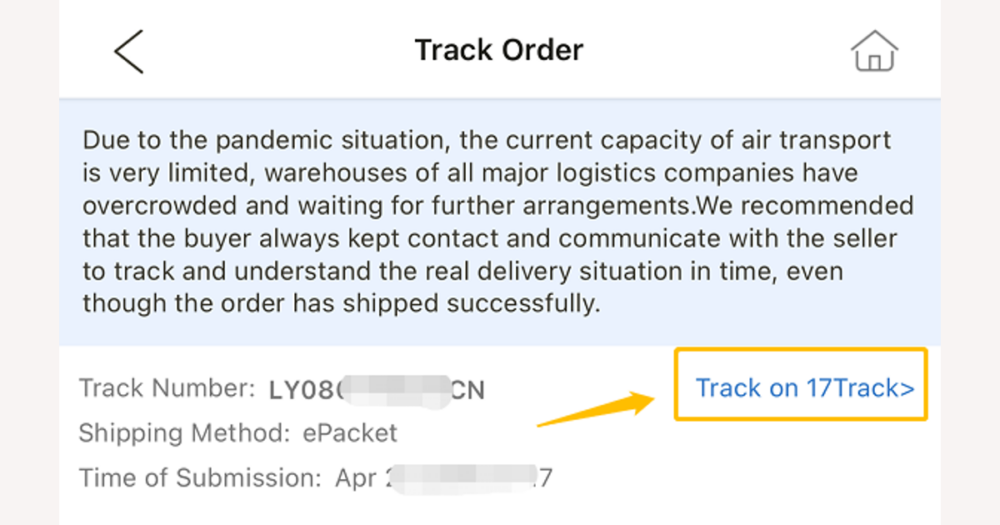
Use the highlighted logistics and tracking area on the DHgate order page as your starting point for finding the tracking number and any carrier information.
Why tracking updates appear when they do
Once your DHgate order has a tracking number, each update begins with a physical scan of the parcel’s barcode. Staff at the origin warehouse, export hub, customs facility, or local delivery depot scan the label when the package is accepted, sorted, loaded, or delivered. Those scans create time‑stamped events in the carrier’s system, forming the basic history of where and when the parcel was handled.
Once those events exist in the carrier’s system, they become available through the carrier’s tracking page and data feeds. DHgate’s order tracking reads them and turns them into shopper‑friendly statuses tied to your order, such as showing that the seller has shipped or that the package has reached your country. Universal tracking sites likewise use carrier data or APIs, combining events from different legs into one timeline when possible.
Since everything depends on scans, updates do not appear continuously. Some facilities scan only at key handover points rather than at every short stop, while others upload events in batches instead of instantly, especially on busy or international routes. Long flights, ocean legs, or customs inspections may leave many hours—or even days—between visible changes while the parcel continues through the normal process.
DHgate’s tracking view sits downstream from these carrier systems, so it may lag slightly behind the carrier’s own site or merge multiple scans into one easier-to-read status. That does not automatically signal a lost package; it usually reflects how event data moves from scanners to carrier systems and then into DHgate and other tracking tools.
DHgate vs carrier vs universal tracking: what each view is good for
| Tracking view | What it shows best | Limitations | When to rely on it |
|---|---|---|---|
| DHgate order tracking | Order-focused status that links shipping progress to your DHgate order: whether the seller has shipped, rough delivery estimates, and how tracking fits with buyer protection timelines. | May simplify or group multiple carrier events, can update slightly later than the carrier site, and usually won’t show very technical location codes or every scan. | Use it as your home base for checking whether the order is on track overall and how shipping progress affects refund or dispute deadlines. |
| Carrier tracking site | The primary feed of scan events, often with the most detailed timeline of where and when the parcel was handled, including facilities, transit hubs, and delivery attempts. | Only covers the segments handled by that carrier, may use technical terms, and still depends on when and where staff actually scan the parcel. | Check it when you want the clearest, most detailed picture of your package’s physical journey or when DHgate’s view looks vague or slightly behind. |
| Universal tracking platform | A consolidated view that can follow the same tracking number across multiple carriers or postal systems and present events in a single timeline, which can be handy for complex international routes. | Still relies entirely on underlying carrier data, can misidentify the carrier, and may lag or miss less common event types compared with the carrier’s own site. | Use it as a convenient supplement when a shipment changes hands between carriers or when you want a single view of multiple legs, but confirm important details on DHgate and the carrier’s official tracking page. |
What common tracking statuses mean for your DHgate order
- “Info received” / “shipping information received”: The seller or DHgate’s logistics partner has created a label and told the carrier to expect your parcel, but it may not have been physically scanned yet. Normal action: wait a short time for the first real scan, and keep an eye on the estimated delivery date shown in your DHgate order details.
- “In transit”: The package is moving between facilities or countries and is being handled by one or more carriers. It is common for scans to appear only when the parcel enters or leaves major hubs, so there can be gaps of several days. Normal action: just wait, unless the shipment is far beyond DHgate’s estimated delivery window.
- “Out for delivery”: The parcel is on a vehicle for delivery that day in your local area. Normal action: make sure someone can receive the package or your address is accessible; if you later see repeated “attempted delivery” or similar messages, check your DHgate order address and consider contacting the carrier.
- “Delivered”: The carrier has marked the package as handed over at the destination (to your address, a mailbox, parcel locker, or reception). Normal action: first check around your property, ask household members or neighbors, and confirm the shipping address in your DHgate order. If you still can’t find the parcel, contact the carrier and review DHgate order details and messages so you can reach out to the seller or support within the buyer protection period.
- Customs-related notices (such as “clearance in progress,” “held at customs,” or “awaiting clearance”): Your shipment is being checked by customs or another authority, which can take several days or longer, especially for international DHgate orders. Normal action: wait and monitor updates; if the delay becomes prolonged or you see a notice asking for additional information or payment, follow the instructions on the carrier site and review any logistics notes on your DHgate order page.
- Repeated “attempted delivery” / “delivery failed” messages: The carrier tried to deliver but could not complete it (for example, no one was available, the address was incomplete, or there was an access issue). Normal action: check the address in your DHgate order, look for any delivery notices, and contact the carrier to rearrange delivery or pickup. If problems persist, update the seller through DHgate messages.
- Overall pattern: Most routine statuses simply show that the parcel is following the usual steps from dispatch to delivery and mainly call for patience. Patterns like a very long “info received” with no movement, repeated failed delivery attempts, or extended customs holds justify looking closely at your DHgate order details, logistics notes, and buyer protection timelines, and then contacting the carrier or seller if needed.
When slow or missing tracking updates become a concern
FAQ: Notifications, “not found” tracking numbers, and multiple IDs
Do email or app notifications from tracking sites give me real-time location for my DHgate package?
Notifications help you see new tracking events soon after the carrier publishes them, but they still only reflect the same discrete scans you would see on DHgate or the carrier’s site. They can alert you quickly when a status changes—such as “arrived in destination country” or “out for delivery”—but they cannot show continuous live GPS or create extra updates beyond what the carrier records.
What should I do if my DHgate tracking number shows “not found” on a tracking website?
A “not found” message usually means the tracking number has not been activated in the carrier’s system yet or was entered incorrectly. First, copy the tracking number directly from your DHgate order details and paste it carefully into the tracking site. If it still shows “not found,” wait a short time—often up to a day or two—for the seller’s shipment to be scanned and activated, then try again on the carrier’s official tracking page or a reputable universal tracker. If the number remains invalid and your order does not progress on DHgate either, contact the seller through DHgate for clarification before your buyer protection period ends.
Why does my DHgate order have more than one tracking number, and is that a problem?
Multiple tracking numbers on a single DHgate order can be normal. Sellers sometimes split an order into separate packages or use different carriers for different items or legs of the route. In that case, each tracking ID corresponds to one parcel, and you should see movement for each number on DHgate and the relevant carrier or universal tracking site. Treat each tracking ID as its own shipment, and focus on whether every package shows progress and arrives within the estimated delivery and buyer protection timelines, rather than expecting all items to share a single tracking code.